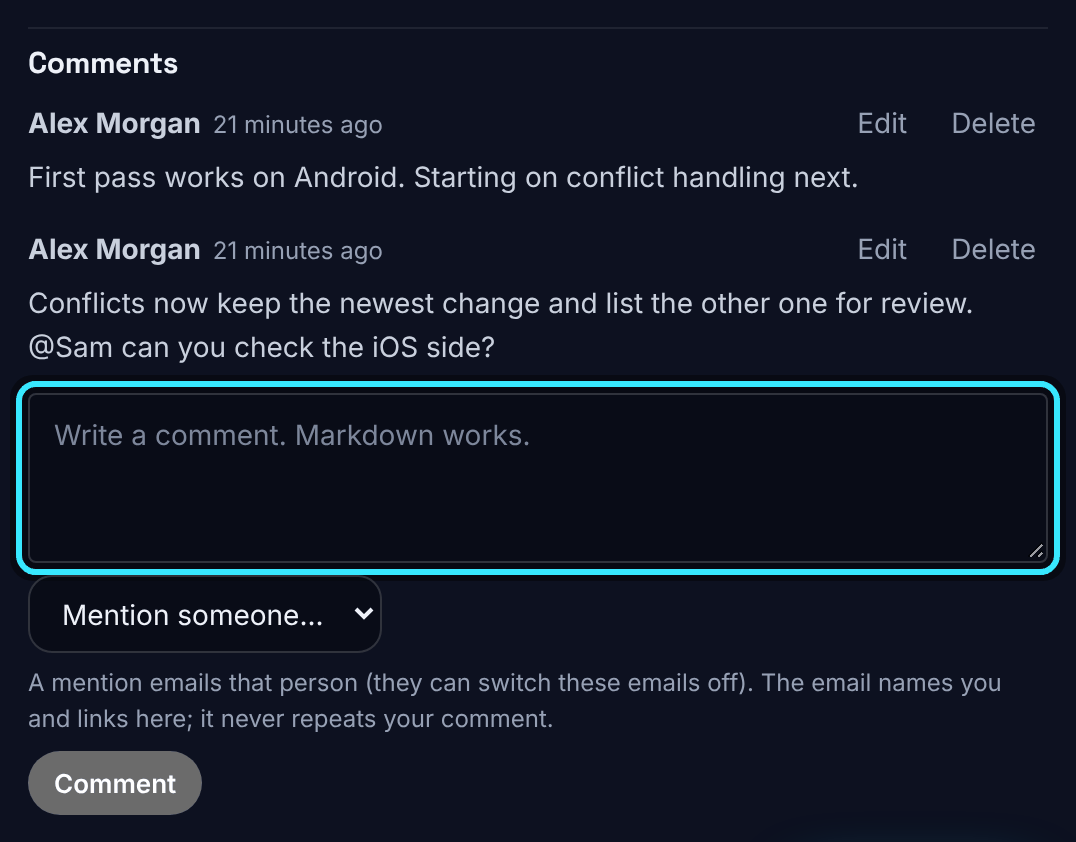
Every task and subtask has a comment thread at the bottom of its editor, for the conversation about the work. Comments need a personal sign in: an API key that is not tied to a person cannot comment.
Write a comment
- Open the task or subtask (the pencil on its row, or click its name).
- Type in Write a comment. Markdown works. (up to 10,000 characters).
- Choose Comment.
Comments are listed oldest first, with the author and when it was written. A comment that was changed says "(edited)". A comment whose author's account was deleted shows "Deleted user".
Format with Markdown
Comments understand Markdown: headings, bold, italic, inline code, code blocks, links, lists, quotes and tables. HTML typed into a comment is shown as text, never run.
Task descriptions are plain text; only comments are formatted.
Mention a teammate
Choose Mention someone... and pick a member to put "@Name" into the comment, or type it yourself. When you press Comment, each person still named is told: a mention emails that person (they can switch these emails off). The email names you and links to the task; it never repeats your comment. Up to 20 people can be mentioned in one comment.
Edit or delete a comment
- Edit: only the author can change a comment. Choose Edit, change the text, then Save.
- Delete: the author, or an admin or owner, can delete a comment after confirming.
The activity log records that a comment was added, never what it said.