A project is planned in three levels: phases (the stages of the work), tasks in each phase, and subtasks under a task. This chapter covers building the plan and keeping it current.
Watch the video: Phases, tasks and subtasks
Add phases, tasks and subtasks
- Phase: choose Phase on the project page, type a name and choose Create phase. A phase can have its own description, priority, owner and dates; its due date makes it a milestone.
- Task: type a name into Add a task... at the bottom of a phase and press Enter. The box stays ready for the next one, so you can type a list quickly.
- Subtask: open a task with the arrow on its row, then type into Add a subtask....
Everything else about an item is set in its editor: choose the pencil on its row, or click its name.
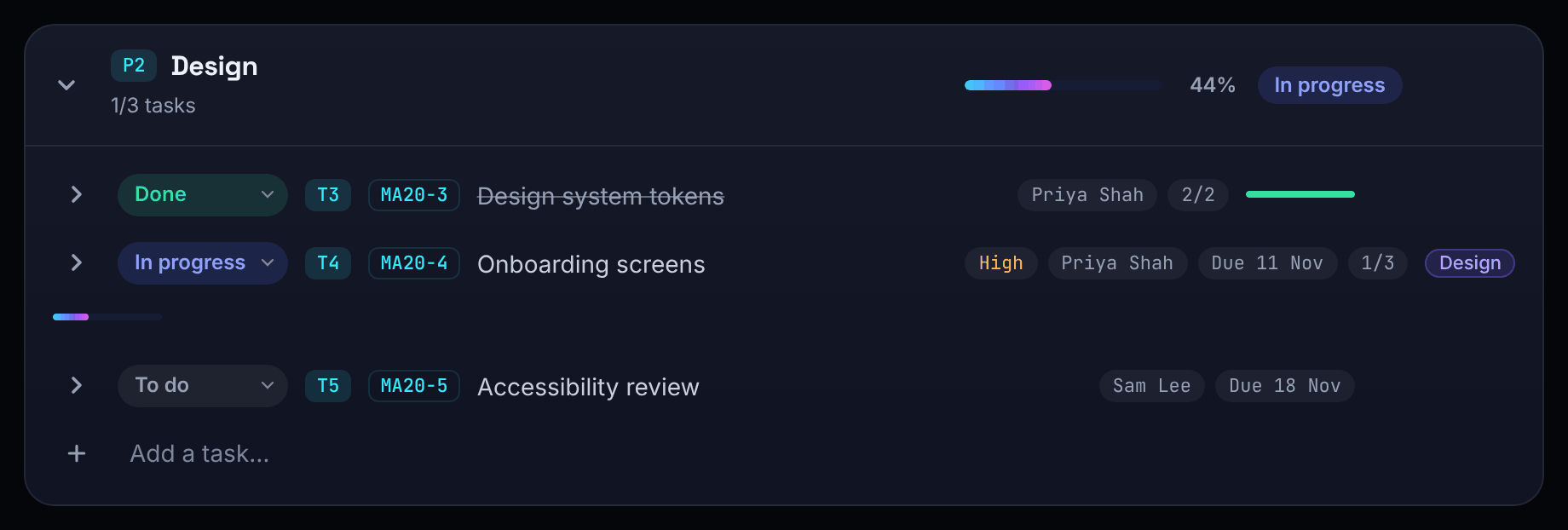
Status and priority
Tasks and subtasks have a status you set: To do, In progress, Blocked, Done or Cancelled. Change it with the menu at the start of the row; it saves at once.
Phases and projects have no status menu. Their status is worked out from what they hold:
- nothing inside: To do;
- everything cancelled: Cancelled (otherwise cancelled items are left out);
- everything left done: Done;
- all the open work blocked: Blocked;
- anything in progress or done: In progress;
- otherwise: To do.
So a phase closes when its last task is done, and reopens when a task reopens. A subtask's status never changes its task's status.
Priority is Low, Medium (the default), High or Critical.
How progress is worked out
An item marked Done counts as 100%. Otherwise its progress is the average of its children's progress, leaving out cancelled children. A task with no subtasks is 0% until it is done. A project's progress counts its build phases only, never the waiting and regular sections. Progress is shown as a whole percentage.
The task editor
| Field | Notes |
|---|---|
| Name | Required, up to 300 characters |
| Description | Up to 20,000 characters, shown as plain text |
| Status | To do, In progress, Blocked, Done or Cancelled |
| Priority | Low, Medium, High or Critical |
| Owner | Type or choose a member's name to link the task to them (it then appears on their My work page and they are told it was assigned). Any other text is kept as plain text |
| Phase | Moves the task to another build phase or section |
| Start date, Due date | The due date drives overdue warnings, the calendar, the timeline and repeats |
| Labels | Coloured tags (see Labels) |
| Repeat | Make the task repeat (below) |
| Blocked by | Other tasks in the project that must finish first |
Labels, Repeat and Blocked by appear once a task exists: create it, then open it again to set them. Subtasks do not have them. An empty box clears the field when you save.
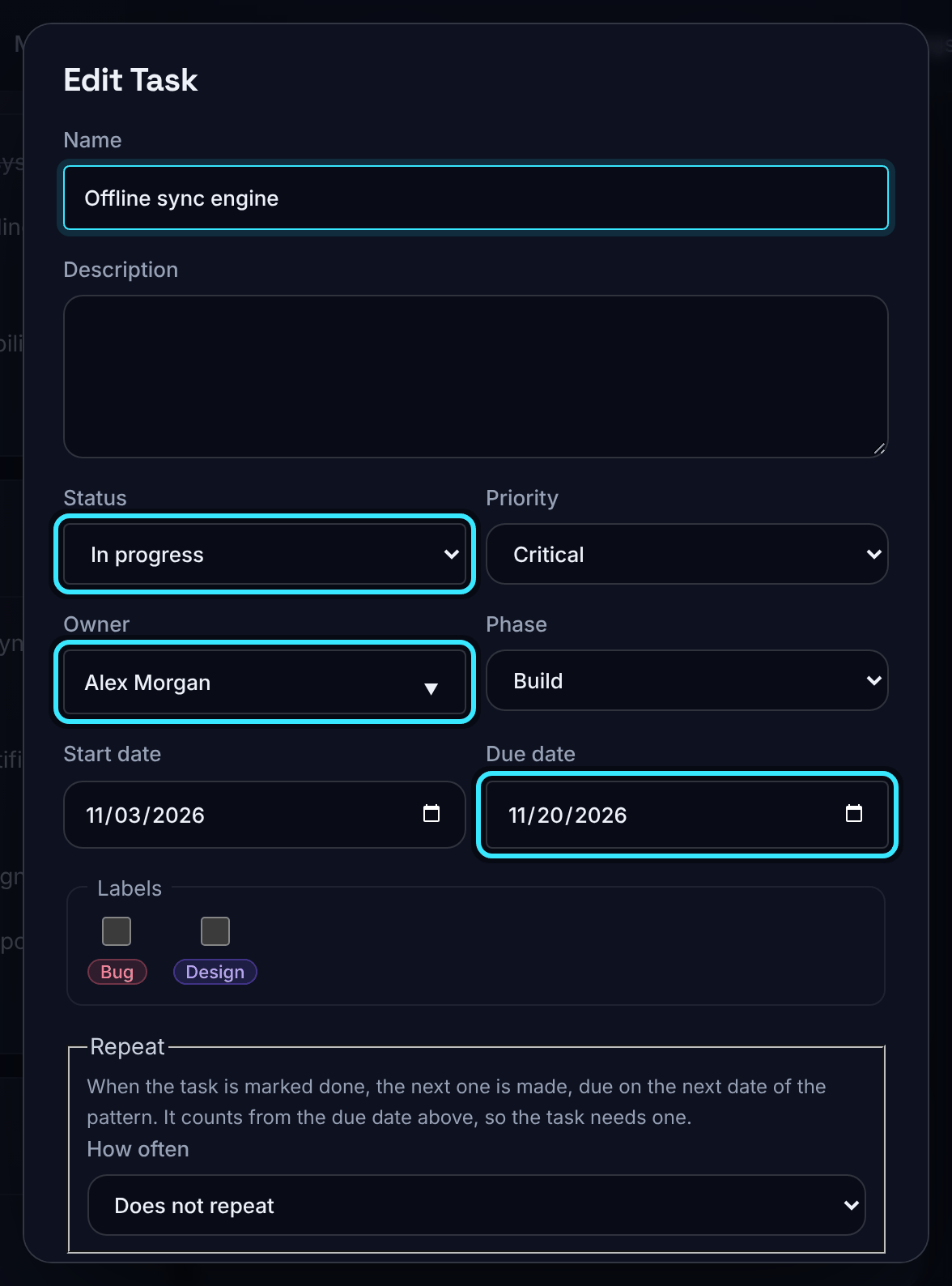
Repeating tasks
A task can make its next copy by itself when you mark it done.
- Give the task a due date and save it.
- Open it again and, under Repeat, choose How often: Every day, Every week or Every month.
- Set Every (1 to 52 days, weeks or months). For weekly repeats tick the weekdays (none ticked means the due date's weekday); for monthly repeats you can set the day of the month (a day past the end of a month uses its last day).
- Optionally set Until, then save.
When the task is marked Done, a new copy is made due on the next date of the pattern, with the same name, description, priority, owner, labels and subtasks (reset to To do). The row shows a tag such as "Repeats every week on Mon, Thu". Choose Does not repeat to stop; copies already made stay.
An organisation can have up to 200 repeating tasks.
Blocked by
Under Blocked by, tick the tasks that must be finished first. While any of them is open, the task shows a "Blocked by AF-3" tag (with "+1" and so on for more). A loop, where two tasks block each other, is refused.
Waiting and regular sections
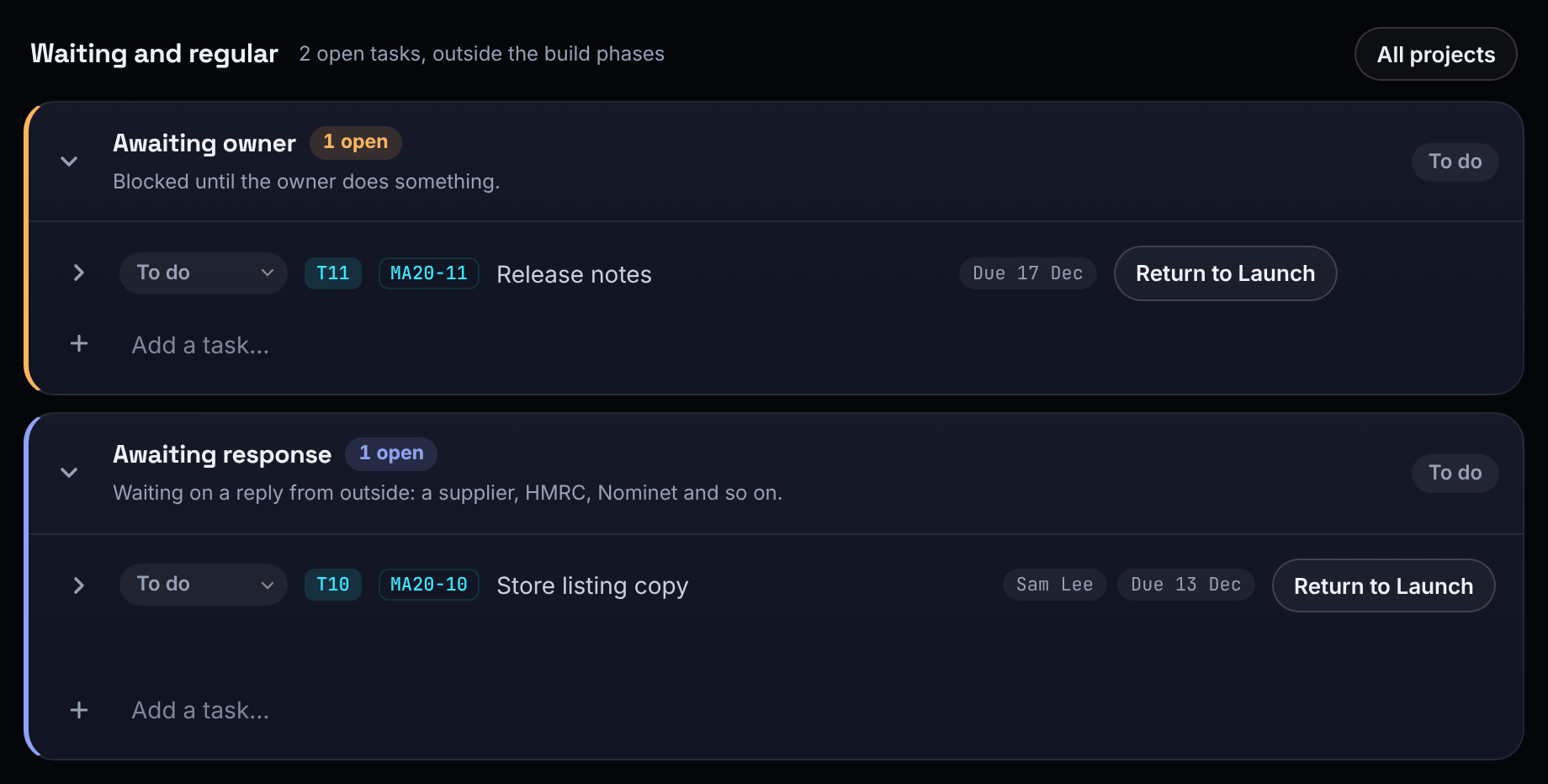
Besides its build phases, every project can have three standing sections, shown above the build phases under Waiting and regular:
- Awaiting owner: blocked until the owner does something.
- Awaiting response: waiting on a reply from outside: a supplier, HMRC, Nominet and so on.
- Regular tasks: recurring work that never finishes.
A section is made the first time a task goes into it, and only sections that hold tasks are shown. They never count towards the project's status or progress, so a build phase can close while waiting work sits elsewhere.
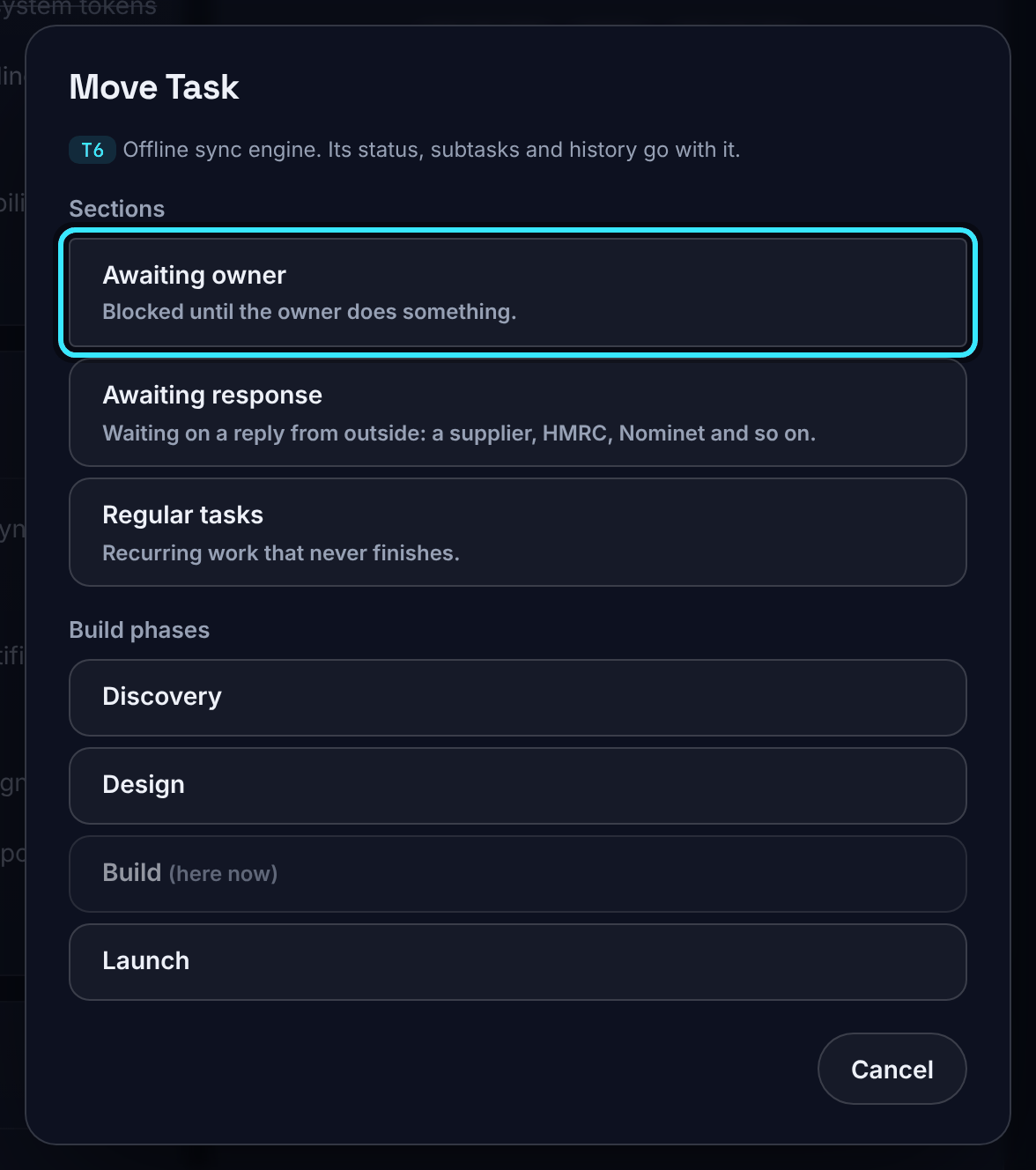
Move a task, and return it
- Choose the move icon on the task's row.
- In Move task, choose a section or a build phase. The task keeps its status, subtasks and history.
A task moved into a section from a build phase remembers where it came from: Return to (with the phase's name) on its row puts it back. You can also move a task with the Phase menu in its editor.
Done phases and folding
Done phases are hidden by default; use Hide done and Show all above the phases. Complete phases and tasks start folded and open when you choose them. AperioFlow remembers, in this browser, which ones you opened or folded.
Delete phases, tasks and subtasks
Choose the bin on a row and confirm. Deleting a phase removes its tasks; deleting a task removes its subtasks. It cannot be undone. Every deletion is recorded in the activity log.
Who can change the plan
Members, admins and owners can create, edit, move and delete phases, tasks and subtasks. Viewers can read everything but any change is refused with "Viewers can look but not change anything. Ask an admin for the member role." See Members and roles.