The sign in window opens by itself whenever you are not signed in. It cannot be closed with Escape: sign in to carry on.
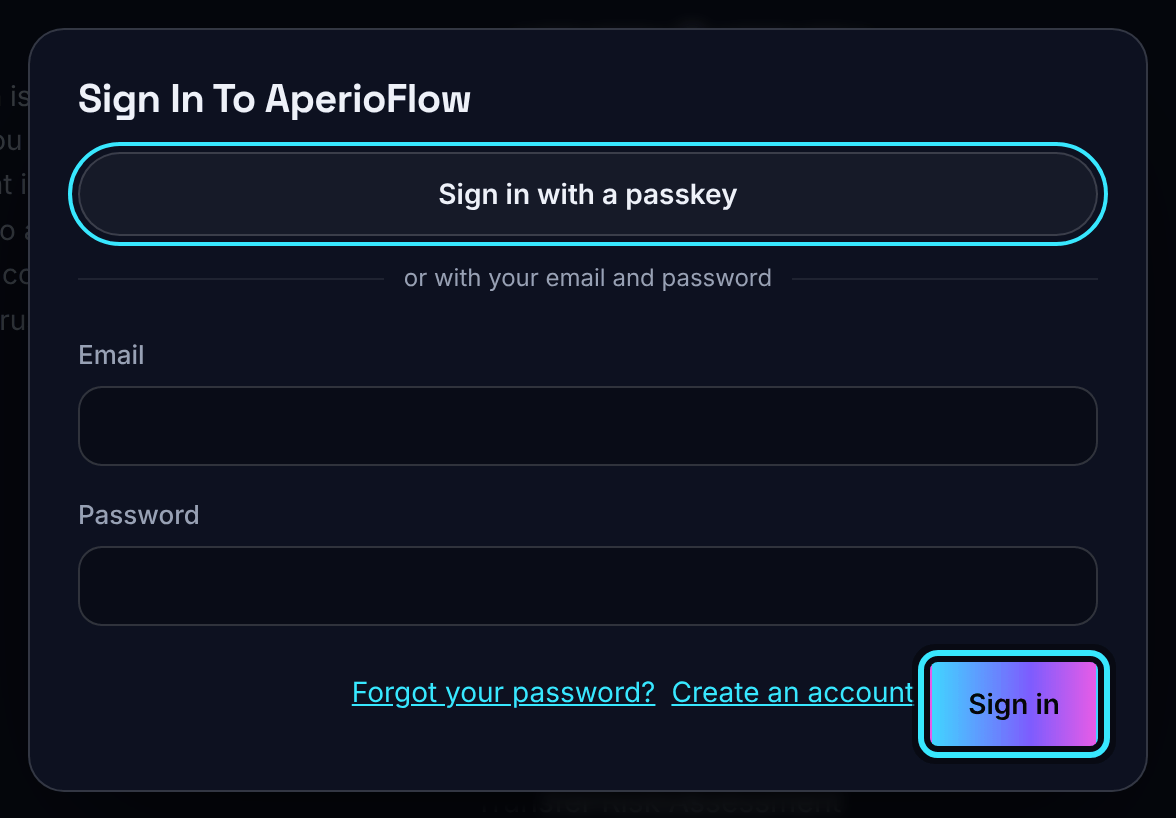
Sign in with your email and password
- Type your Email and Password.
- Choose Sign in.
- If two-factor sign in is on for your account, a box appears for the Code from your authenticator app (or a recovery code). Type the six-digit code and choose Sign in again.
After signing in you return to the page you were trying to reach, for example an invitation link.
After 10 failed attempts from the same place in 15 minutes, sign in is refused for a few minutes: "Too many failed attempts. Try again in a few minutes."
Sign in with a passkey
If your browser supports passkeys and you have added one (see Your account), choose Sign in with a passkey and confirm with your fingerprint, face or device PIN. A passkey replaces both the password and the two-factor code.
If you cancel the browser's prompt nothing happens. Any other problem shows "Your passkey could not be used" with the reason.
Sign in with Google, GitHub or Slack
Microsoft and Apple can be offered too. When any of these are switched on, the sign in window shows a button for each, with the provider's logo (its name appears when you point at it, and screen readers say "Sign in with" and the name). They are plain links to AperioFlow: no script from the provider is loaded until you choose one.
- The provider account must be linked to your AperioFlow account first. Sign in another way, then link it on Your account under Linked sign-ins. Nothing is ever linked just because the email addresses match.
- If two-factor sign in is on, AperioFlow still asks for your code after the provider sends you back.
- The iPhone, iPad and Android app shows the same buttons under Sign in. The provider's page opens in your phone's secure browser, then you are back in the app. Link the account on the website first.
Messages you may see after a provider sign in:
| Message | What it means |
|---|---|
| The sign-in was cancelled or refused. | You (or the provider) said no. Start again if you want to. |
| This sign-in link has expired or was already used. | The round trip took too long or was repeated. Start again. |
| That account is not linked to an AperioFlow account. | Sign in another way, then link it on Your account, Linked sign-ins. |
| That account is already linked to a different AperioFlow account. | Unlink it there first. |
| The provider has not verified an email address for that account, so it cannot be linked. | Verify the address with the provider. A Microsoft work or school account counts only if your organisation's domain is verified with Microsoft. |
| An AperioFlow account already uses that email address. | Sign in with your password, then link the provider. |
| Too many sign-in attempts from this connection. | After 10 failed sign-ins (a provider account that is not linked counts as one) or 30 provider sign-ins in 15 minutes from the same connection, provider sign-in pauses. Wait 15 minutes, then try again. |
Forgotten your password
- In the sign in window choose Forgot your password?
- Type your Email and choose Send the link. If that address has an account, a link is on its way. It works for an hour.
- Open the link, type a New password of at least 10 characters and choose Set password. Every other device is signed out.
The answer is the same whether or not the address has an account, so the form never reveals who uses AperioFlow.
Confirming your email address
A new account must confirm its address before it can be used. The link in the email opens Confirming your email, then Email confirmed. If the link has expired, sign in and we send a new one.
Accepting an invitation
An invitation email links to a page that says who invited you, to which organisation and with which role.
- New to AperioFlow: type Your name, choose a password of at least 10 characters, tick I am 18 or over, tick I agree to the End User Licence Agreement. and choose Create account and join. The page also says that your use of AperioFlow for the organisation is covered by the Terms of Service and Data Processing Addendum it has agreed to.
- Already have an account: sign in as the invited address, then choose Accept invitation. The page shows the same line about the organisation's Terms of Service and Data Processing Addendum.
The link works once and for seven days. When you join you land on Projects with the message "Welcome to" and the organisation's name.
When our terms change
When we make a material change to an agreement, such as the Terms of Service, the End User Licence Agreement or the Data Processing Addendum, AperioFlow shows Our terms have changed after you sign in. It lists each changed document with its version, the date it takes effect, what changed and a link to read it in full.
- I accept records your answer and you carry on.
- I do not accept records that too and shows You have not accepted the updated terms, with links to your subscription, to download your data, to the Tweed Tyne Technologies Privacy Centre and to sign out. Nothing is deleted or cancelled, and you can choose I accept later.
- Until your access would be limited, the same page has Carry on using AperioFlow, and says from which date you would not be able to keep using AperioFlow without accepting. That date is never less than 30 days after the change was first shown to you (or, for the Terms of Service and the Data Processing Addendum, to your organisation).
- The Terms of Service and the Data Processing Addendum are accepted once for the whole organisation, by an owner. Other members see them for information with Got it.
- An updated Privacy Policy or Cookie Notice is shown for information only, with Got it: it does not need your agreement.
You are asked once each time you sign in until you answer. Corrections and changes that take effect on posting are not put to you.
The 18 or over check
AperioFlow is for people aged 18 or over. An account that has not confirmed this sees One more thing before you carry on and must tick I am 18 or over once before anything else works.
If you are not in an organisation
If your organisation was deleted, you were removed from it, or your access was switched off because the organisation is over its plan, you see You are not in an organisation. Your account is still there. Ask an owner of another organisation to invite you, download your data from the same page, or delete your account in the Tweed Tyne Technologies Privacy Centre.