Settings in the main menu holds everything that belongs to the organisation rather than to one person. Everyone can open it; only admins and owners can change it, and some cards are for owners only.
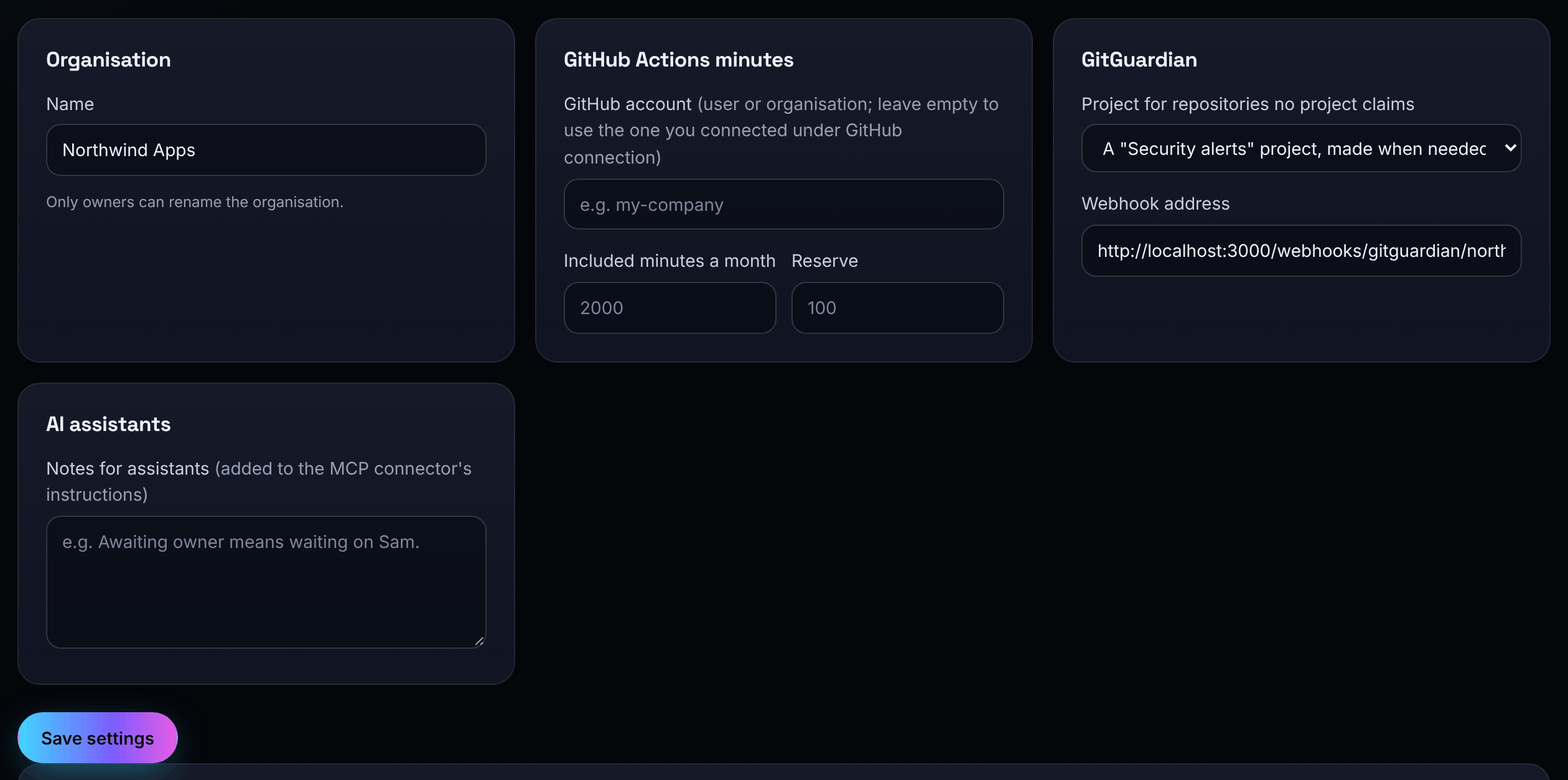
Organisation, minutes, GitGuardian and AI assistants
The first card is saved with one Save settings button (admins and owners):
- Name: the organisation's name. Only owners can rename it.
- GitHub Actions minutes: the GitHub account to read (leave empty to use the connected one), the Included minutes a month and the Reserve kept back. See GitHub and Actions minutes.
- GitGuardian: the project for repositories no project claims, and the Webhook address to give GitGuardian. See Working with issues.
- AI assistants: Notes for assistants (up to 2,000 characters), added to the instructions an AI assistant receives when it connects, for example "Awaiting owner means waiting on Sam."
Labels
The organisation's labels are managed here. See Labels.
Coolify notifications
The address to paste into Coolify and where its notifications go. See Coolify.
Billing
The plan, what you are using and how to change plan. See Plans and billing.
Secrets
Owners store secrets that integrations need, such as the GitGuardian signature token. A secret is stored encrypted and never shown again; you can replace or remove it. Each change, and each time one is used, is written to the activity log.
Export this organisation
Admins and owners can download a JSON file with the organisation's settings, members, invitations, projects, phases, tasks, subtasks, comments, labels, issues and their events, the activity log and GitHub Actions allowances. Type your Current password and choose Download JSON.
Secrets, keys and passwords are never included. Monitors, heartbeats, incidents, maintenance windows, status pages and webhooks are not part of the export.
Delete this organisation
Owners can delete an organisation for good. Everything in it goes: projects, tasks, issues, monitors and settings. Every member is emailed; their own accounts stay. Backups are overwritten within 28 days.
- Download the organisation's data first if you want a copy.
- If the organisation has a paid subscription, cancel it under Billing first.
- Under Delete this organisation, type your Current password, your two-factor code if it is on, and the organisation's name.
- Choose Email me a link to delete this organisation. The link works once, for one hour.
- Open the link and choose Delete the organisation now. Opening the link deletes nothing; only that button does.