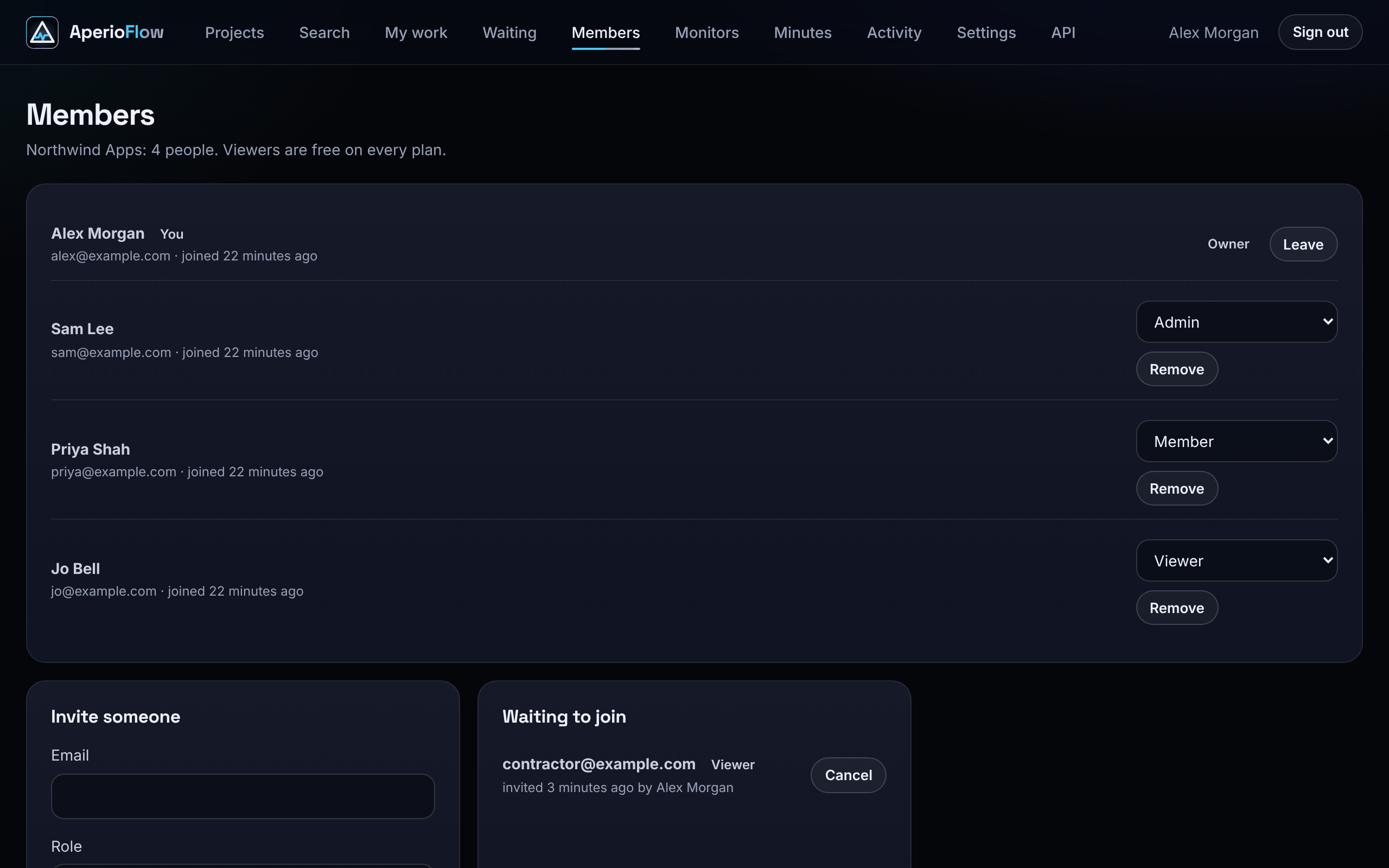
Members in the main menu lists everyone in your organisation, with their role, whether two-factor sign in is on for them and when they joined.
Roles
Each person has one role in each organisation they belong to:
| Role | Can |
|---|---|
| Viewer | Read everything. Free on every plan, for clients and stakeholders |
| Member | Plan and change the work: projects, phases, tasks, issues, monitors, maintenance windows, labels and their own API keys |
| Admin | Also invite and remove people and change their roles (not owners), import CSV files, delete projects and labels, rotate ingest keys, change organisation settings, export the organisation, manage webhooks, status pages and hand-written incidents, and see the activity log |
| Owner | Everything, including making or removing owners, renaming the organisation, billing, secrets, alert email recipients, the Coolify and GitHub connections, and deleting the organisation |
An organisation always keeps at least one owner. Viewers can change their own account settings and leave the organisation, but any other change is refused with "Viewers can look but not change anything. Ask an admin for the member role."
Your plan sets how many people who are not viewers can belong: 1 on Free, 1 on Solo and up to 10 on Team. Viewers are free and never counted.
Invite someone
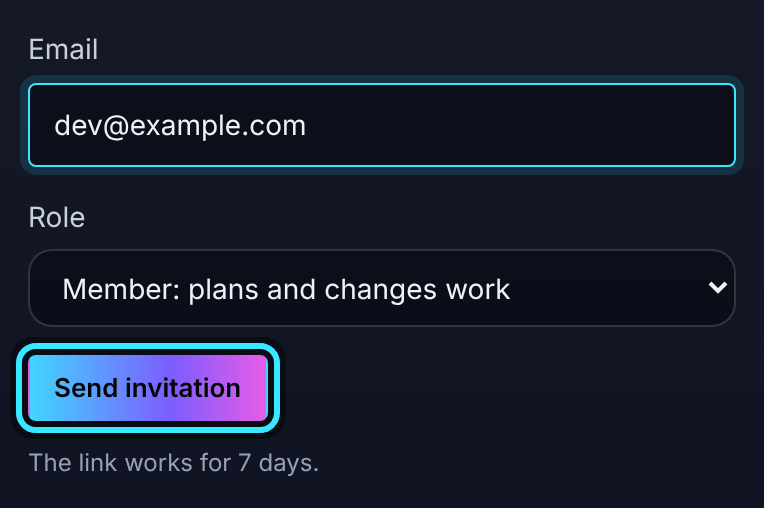
- Admins and owners fill in Invite someone: the person's Email and a Role (Member is the default; only owners can invite owners).
- Choose Send invitation.
The link works once and for seven days. Sending the same invitation again replaces the old link. Waiting to join lists open invitations, who sent each and when; Cancel withdraws one. See Accepting an invitation for what the person sees.
An invitation for someone who would take you over your plan's members is refused; upgrade first or invite them as a viewer.
Change a role or remove someone
Admins and owners change another person's role with the menu on their row; it saves at once. Only owners can change an owner's role or make someone an owner.
Remove takes a person out of the organisation after you confirm. They are signed out of it at once; their account, and the work they did, stay.
Leave an organisation
Choose Leave on your own row. You need a new invitation to come back. The only owner cannot leave until someone else is an owner.
Members switched off by your plan
If the organisation moves to a plan with fewer members, nothing is deleted: the most recently added members are switched off and their sessions end. Owners and viewers are never switched off. An owner chooses who stays on under Settings, Billing. See Plans and billing.