The view switcher on a project page shows the same tasks in five ways: List, Board, Table, Calendar and Timeline. Your choice is remembered in this browser and used for every project. The label filter, when you have labels, applies to every view.
Watch the video: List, board, table, calendar and timeline
List
The list is the plan itself: each build phase as a card with its tasks and subtasks, progress bars and quick-add boxes. See Phases, tasks and subtasks.
Board
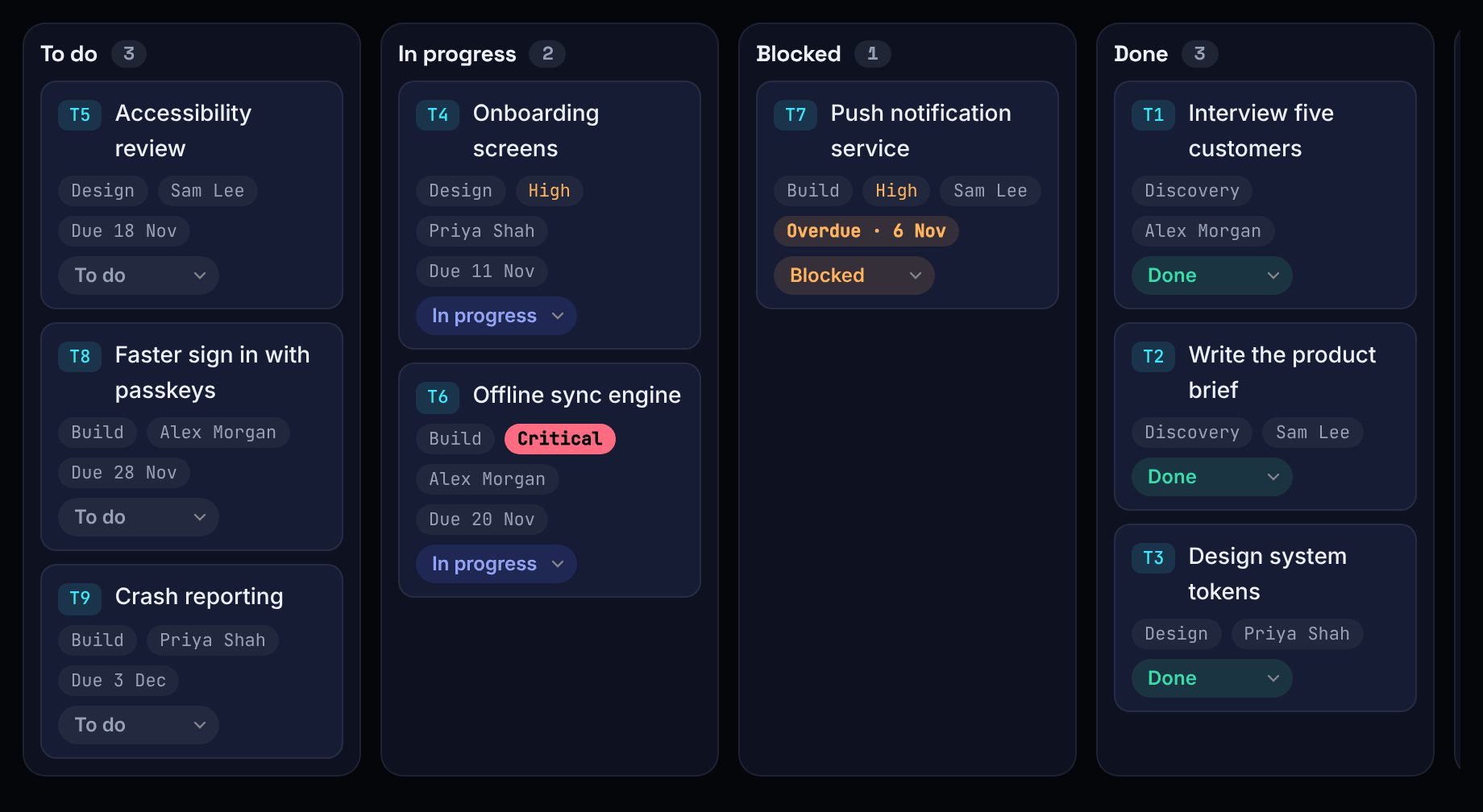
The board has a column for each status: To do, In progress, Blocked, Done and Cancelled. Each card shows the task's ID, name, phase and tags.
- Drag a card to another column to change its status.
- Drop a card onto another card of the same phase to put it just before that one.
- Every card also has a status menu, so you can change it without dragging.
The board shows tasks in build phases only.
Table
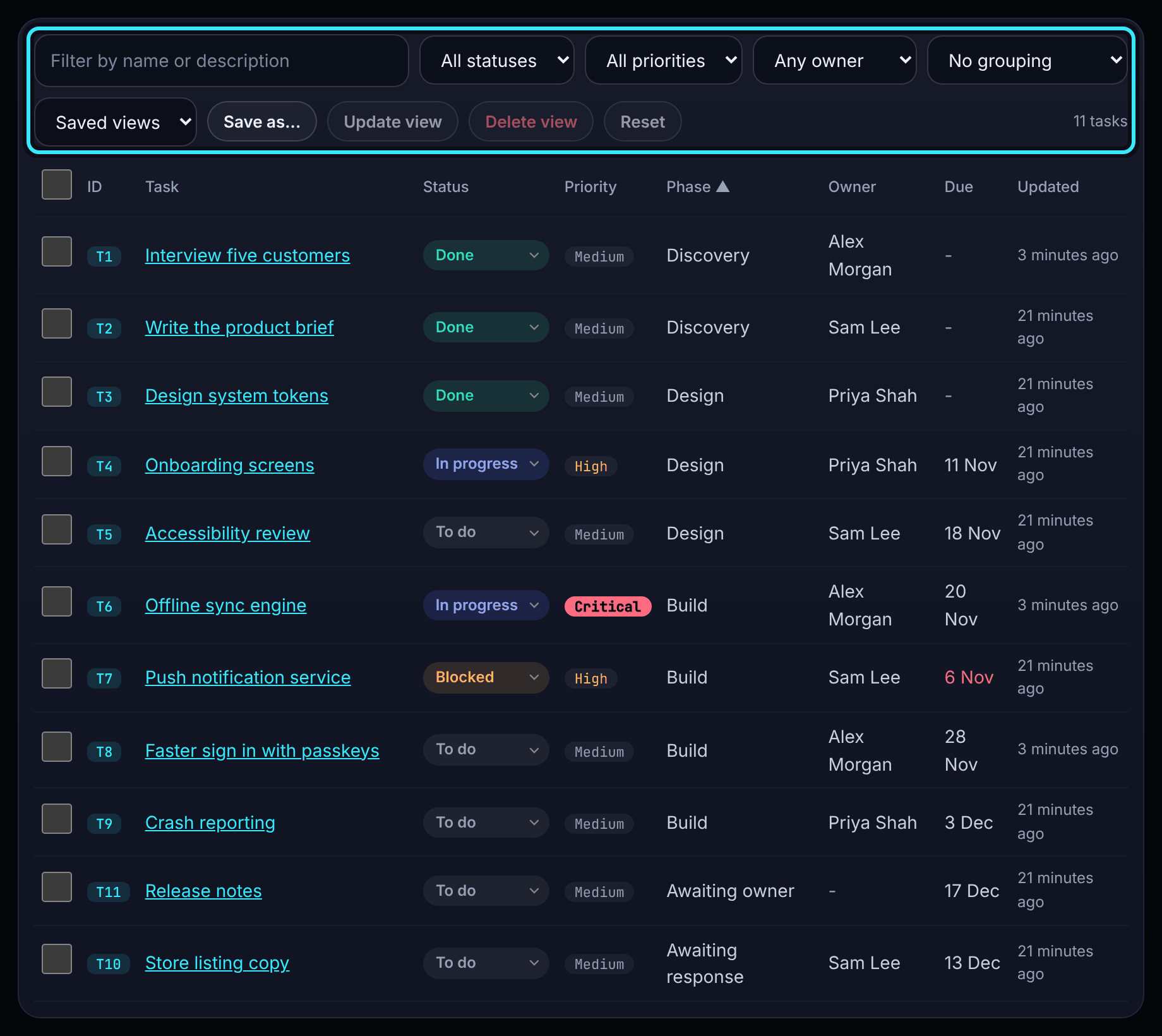
The table lists every task in the project, including those in the waiting and regular sections, with columns for ID, Task, Status (which you can change), Priority, Phase, Owner, Due and Updated.
- Filter with Filter by name or description, All statuses, All priorities and Any owner (or Nobody for unassigned tasks).
- Group with Group by phase, status, priority or owner.
- Choose a column heading to sort by it; choose it again to reverse. Tasks with no owner or no due date always sort last.
- Reset puts the table back to its defaults.
Your filters, sorting and grouping are remembered in this browser.
Saved views
Save a combination of table filters, sorting and grouping to come back to it:
- Set up the table the way you want.
- Choose Save as... and name the view.
- Pick it later from Saved views. Update view saves changes to the chosen view, and Delete view removes it.
Saved views belong to you and to one project, and follow you to other computers. You can keep up to 30 for each project. A saved view does not store the label filter.
Change many tasks at once
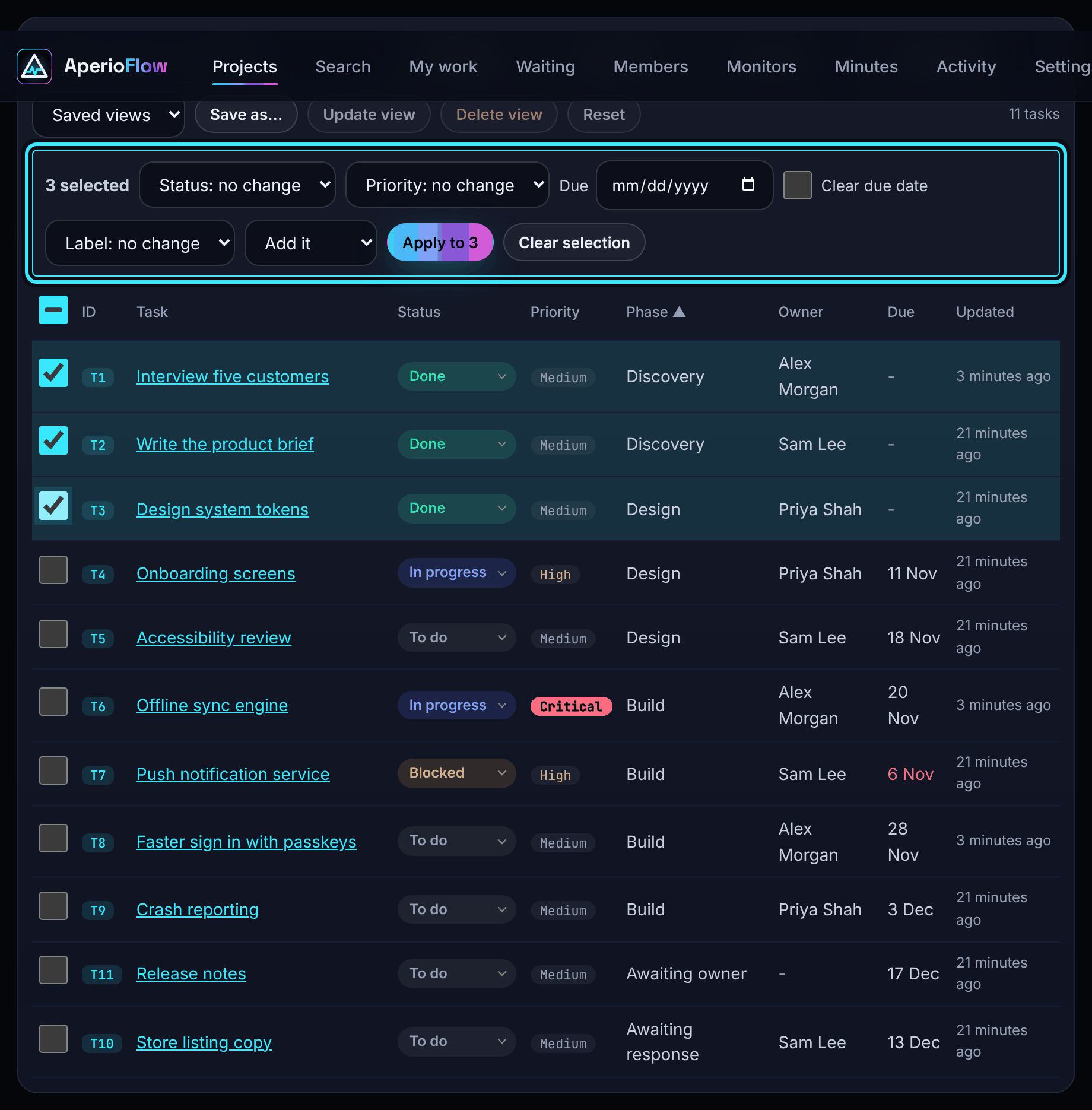
Members, admins and owners see tick boxes in the table.
- Tick the tasks to change, or tick the box in the heading to select every task shown.
- In the bar that appears, choose a new Status, Priority, Due date (or Clear due date) and, when you have labels, a label to Add it or Remove it.
- Choose Apply to (with the number of tasks).
Up to 100 tasks can be changed at once, and the change is all or nothing. Cancelling tasks asks you to confirm first. The owner cannot be changed in bulk. Each change is recorded in the activity log as if made one by one.
Calendar
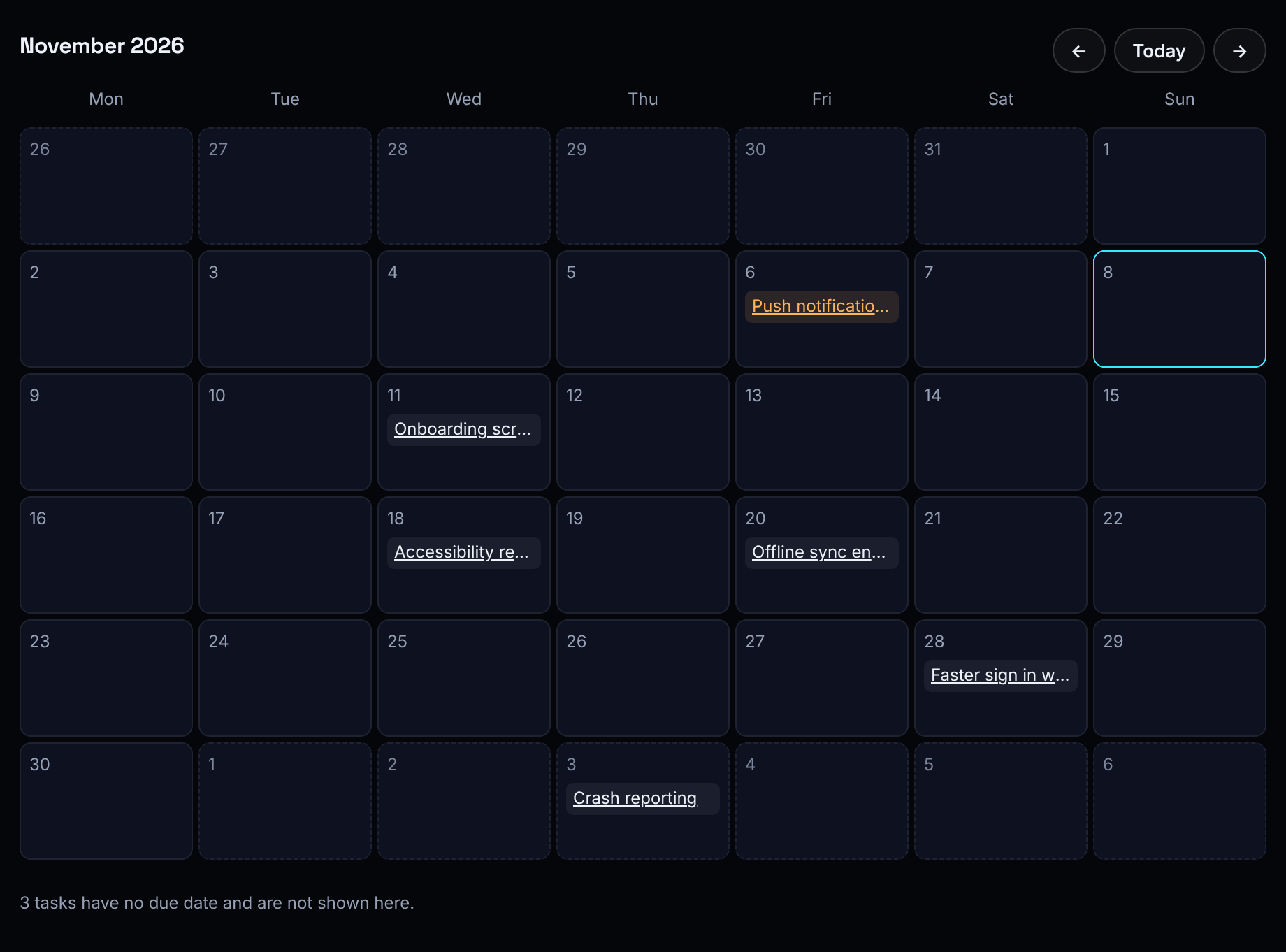
The calendar shows a month, starting on Monday, with each task on its due date. Overdue tasks are marked, and done tasks are shown as done. Use the arrows and Today to move between months. Tasks without a due date are counted underneath. The calendar includes tasks in the waiting and regular sections.
Timeline
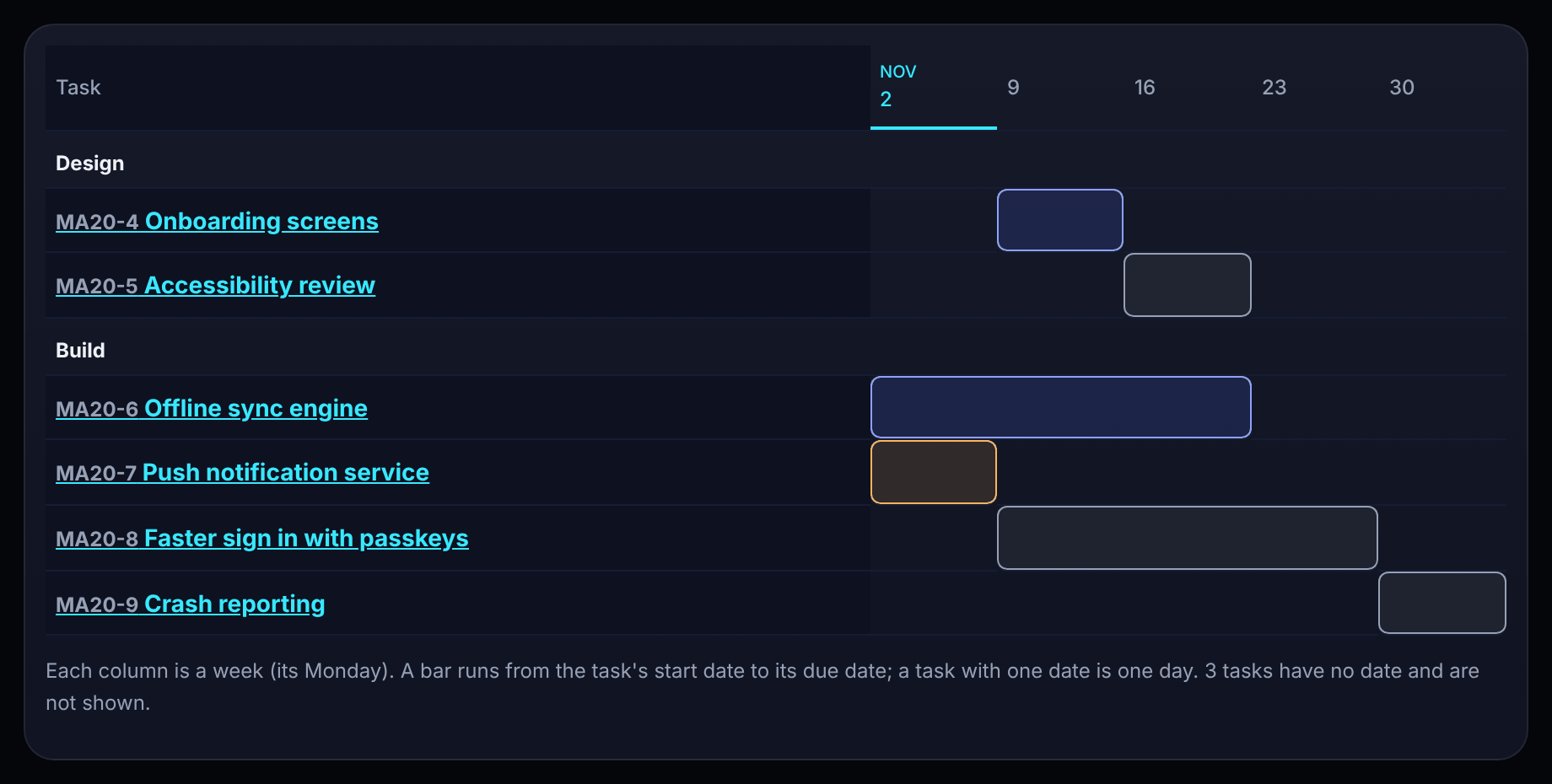
The timeline has one column per week (headed with the date of its Monday) and one row per task, grouped by phase. A bar runs from the task's start date to its due date; a task with only one date is one day long. The current week is highlighted. Plans longer than 60 weeks show their first 60 weeks. Tasks with no dates are counted underneath. On a small screen the timeline scrolls sideways.
Milestones
Milestones, above the plan, lists each build phase with its progress and due date, soonest first. Each one says how many days are left, "due today" or how many days late it is. The panel opens by itself when a milestone is late or due within a week. Give a phase a due date in its editor to make it a milestone.