AperioFlow works with Coolify in two separate ways: it can turn Coolify's notifications into issues, and on Solo and Team it can watch the state of your applications and databases.
Send Coolify notifications to AperioFlow
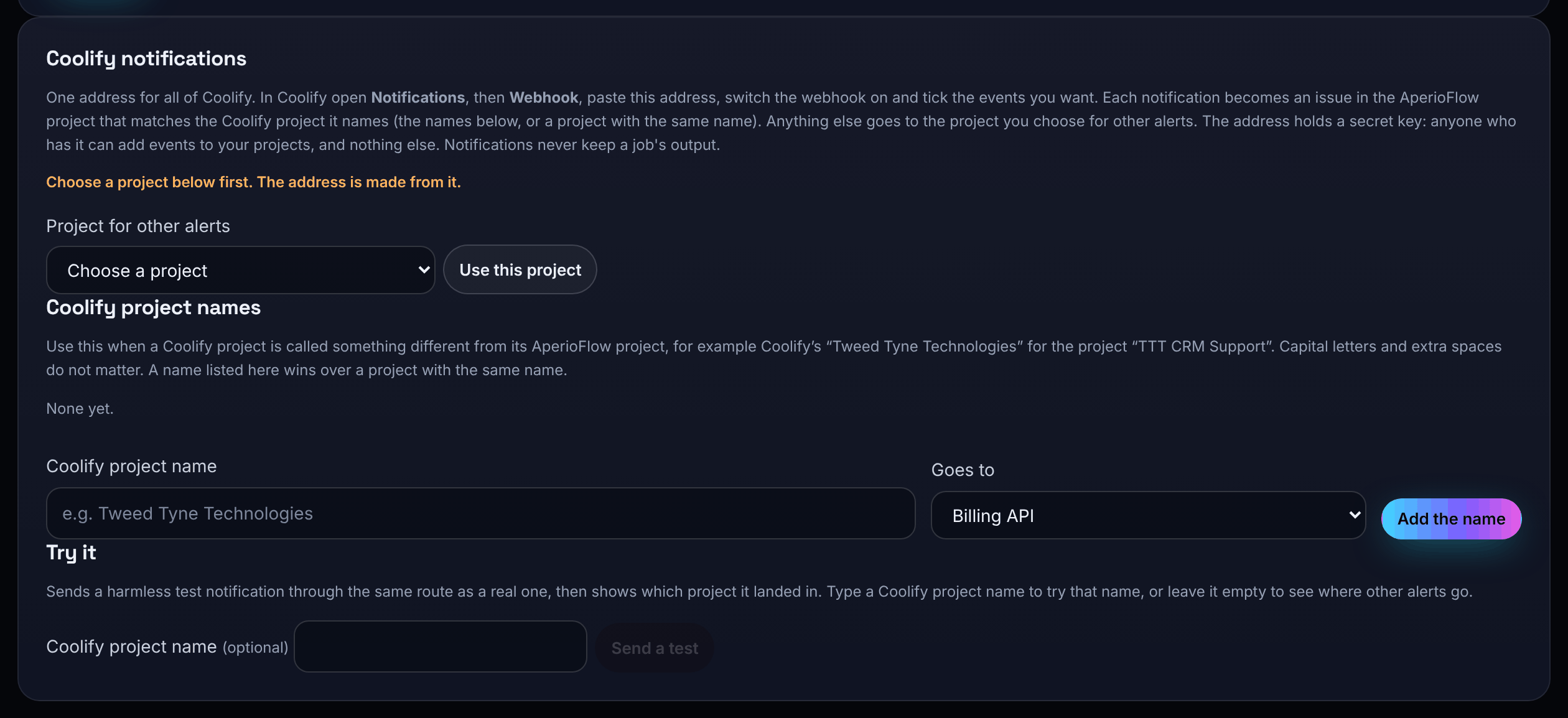
Coolify can tell AperioFlow about failed deployments, failed backups, an unreachable server, disk usage, a restart limit reached and failed scheduled tasks. Each becomes an issue, and the same event on the same resource joins one issue, for example "Coolify: Database backup failed".
- Admins and owners open Settings and find Coolify notifications.
- Choose a project under Project for other alerts and save. The address is made from it.
- Choose Copy address.
- In Coolify, open Notifications, then Webhook, paste the address, switch the webhook on and tick the events you want.
Each notification goes to the AperioFlow project that matches the Coolify project it names: first a name you listed under Coolify project names ("Goes to" a project), then a project with the same name (case and spaces are ignored), then the project for other alerts.
Use Try it with Send a test to file a harmless test issue and see where it lands. Coolify's job output is never kept. These issues count towards your monthly error events like any other.
The address holds a secret key. Make a new address stops the old one at once, so paste the new one into Coolify straight after (Coolify switches a webhook off when it is refused).
Connect Coolify to watch your services
Owners on Solo and Team can give AperioFlow read access to Coolify.
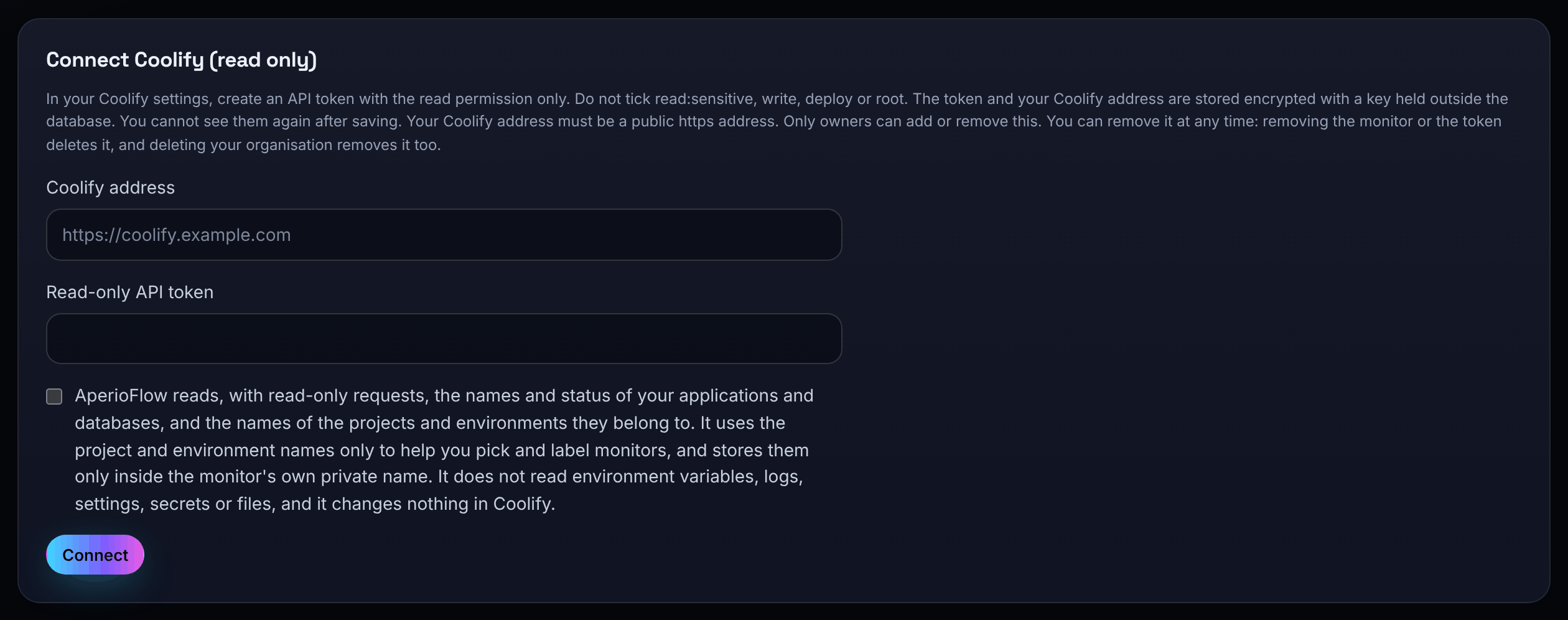
- In Coolify's settings, create an API token with the read permission only. Do not tick read:sensitive, write, deploy or root.
- In AperioFlow open Monitors, then Coolify.
- Type your Coolify address (a public https address) and paste the Read-only API token.
- Read the statement of what AperioFlow reads, tick it and choose Connect.
AperioFlow reads, with read-only requests, the names and status of your applications and databases, and the names of the projects and environments they belong to. It does not read environment variables, logs, settings, secrets or files, and it changes nothing in Coolify. The address and token are stored encrypted and cannot be seen again after saving.
Choose what to watch
- Choose Find applications and databases.
- Tick the ones to watch. Ones already watched are ticked and greyed out.
- Adjust each Monitor name (private; never shown on a status page) and, optionally, a Public name.
- Choose a project for them and choose Monitor the ticked ones.
Set Project for new Coolify monitors to send them to one project by default. When one goes down, an issue is opened in its project.
How Coolify monitors behave
Each is read every minute. Two bad reads at least 50 seconds apart open an incident, and two good ones close it. A container that keeps restarting is spotted as a restart loop. If AperioFlow cannot reach Coolify, or Coolify refuses the token, it says so as one problem with the connection rather than reporting every service as down.
Coolify only tells AperioFlow what Coolify itself reports about a container, so a container that is running can still be serving errors. Add a web monitor for the same service too. A Coolify monitor without one says "No page check is linked".
Coolify monitors count towards your plan's monitors.
Remove the connection
Remove the connection deletes the stored address and token at once and pauses your Coolify monitors.