A status page is a public page showing the monitors you choose, under the names you choose. Admins and owners make and manage status pages, from the Status pages tab under Monitors.
Make a page
Open Monitors, then Status pages, and fill in Create a status page. Pick a name for the address: your page will be at https://<name>.aperioflow.co.uk/status (3 to 40 lowercase letters, digits and hyphens). Then choose Choose components and tick the monitors to show: each ticked monitor is a component, for example "Website" or "Checkout".
Each component has a public name that you type. The page never shows the address that is monitored or your monitor's own name. A page stays unpublished, and answers "not found", until you publish it.
Your plan sets how many pages you can have: 1 on Free, 3 on Solo and 5 on Team.
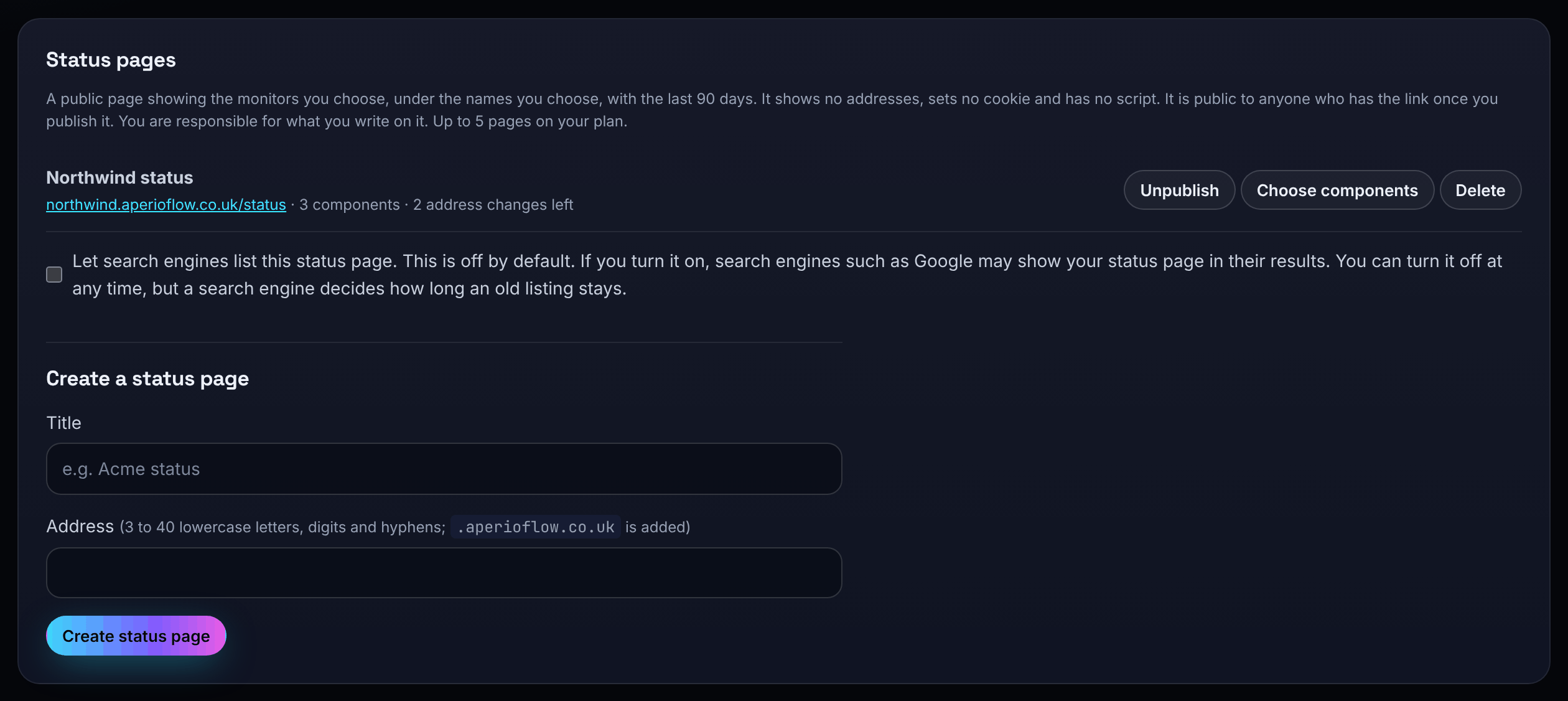
Choose components and publish
- Choose Choose components on the page's row.
- Optionally pick a Project: its monitors are listed first. The project's name is never shown on the public page.
- Tick each monitor to show and type its Public name. A name already filled in comes from the monitor's public name. A monitor whose public name is the same as its own name is marked, so you can check it is fine to publish.
- Choose Save components.
- Choose Publish. Unpublish takes the page down again.
A page can have up to 50 components. Its address can be changed twice, through the API; an old address keeps pointing to the page for 90 days. A deleted page's address stays reserved for 90 days.
What visitors see
Each component shows its current status, and uptime bars for up to 90 days, and no more than your plan keeps. The page also shows incident history with updates (Investigating, Identified, Monitoring and Resolved), scheduled maintenance, and a summary in JSON at /status.json.
A component is Operational, Degraded, Not working, Under maintenance, or shows no data yet. Each day's bar is up when no check failed, partly down when under 5% of checks failed, and down above that.
An incident opens by itself when a monitor fails and is confirmed. You can also write an incident yourself, from a template, and post updates until you resolve it.
Write an incident yourself
- Open Monitors, then Incidents, and find Post an incident on your status page.
- Type a Title and tick the monitors it Affects.
- Choose a Stage and, if you like, a Starting text (Investigating, Identified, Monitoring or Resolved) to fill the update.
- Edit the Update (up to 1,000 characters) and choose Post incident.
Choose Post an update on the incident to add the next stage. An update with the stage Resolved closes it; a later update reopens it. Deleting an update or the incident removes it from the page at once. While it is open, the components it affects show as degraded. Writing an incident sends no alert.
Text you type into an incident is your own and is shown publicly, so do not put personal data in it. Every page says it is published by your organisation and hosted by AperioFlow, links to the Privacy Policy, and has a link to report abuse.
Show a page at your own domain
On Solo and Team an owner can show a status page at a sub-domain of their own, such as status.example.com:
- Open Monitors, then Custom domains, and choose Custom domain on the page's row.
- Type Your domain and choose Add the domain.
- Add the DNS records shown at the company that looks after your domain's DNS. Certificates are issued and renewed for you.
- Choose Recheck DNS until it says Active. A domain that is not verified within 7 days fails; remove it and add it again.
Your domain shows the status page and nothing else. Remove this domain stops it at once.
Email subscribers
Choose Allow email subscribers on a page to let visitors subscribe to updates by email. Each subscriber confirms their address first. They get one email for each update you post and each public maintenance window; incidents opened by themselves are not emailed. Every email has a one-click unsubscribe link.
Choose Subscribers to see how many are subscribed, waiting to confirm, switched off by your plan or blocked after a bounce. Owners can find an exact address and export the list. Your plan sets how many active subscribers you can have: 100 on Free, 250 on Solo and 1,000 on Team.
The status JSON
https://<name>.aperioflow.co.uk/status.json gives the page's name, address and last update, an overall status (up, degraded, down, maintenance or none) with a description, and each component's name and status. It is public, can be read by other websites, and is cached for 60 seconds. An unpublished page answers not found.
What a page loads
Pages load no code, fonts, images, analytics or widgets from anyone else, and our code sets no cookies. (Our network provider may set its own cookie for running the network, as the Cookie Notice says.)
By default a page asks search engines not to list it. You can change that with "Let search engines list this status page". The rules for status pages are in the Terms of Service (G8A).