Labels are coloured tags for tasks, shared by every project in your organisation: for example "Bug", "Design" or "Client".
Make and change labels
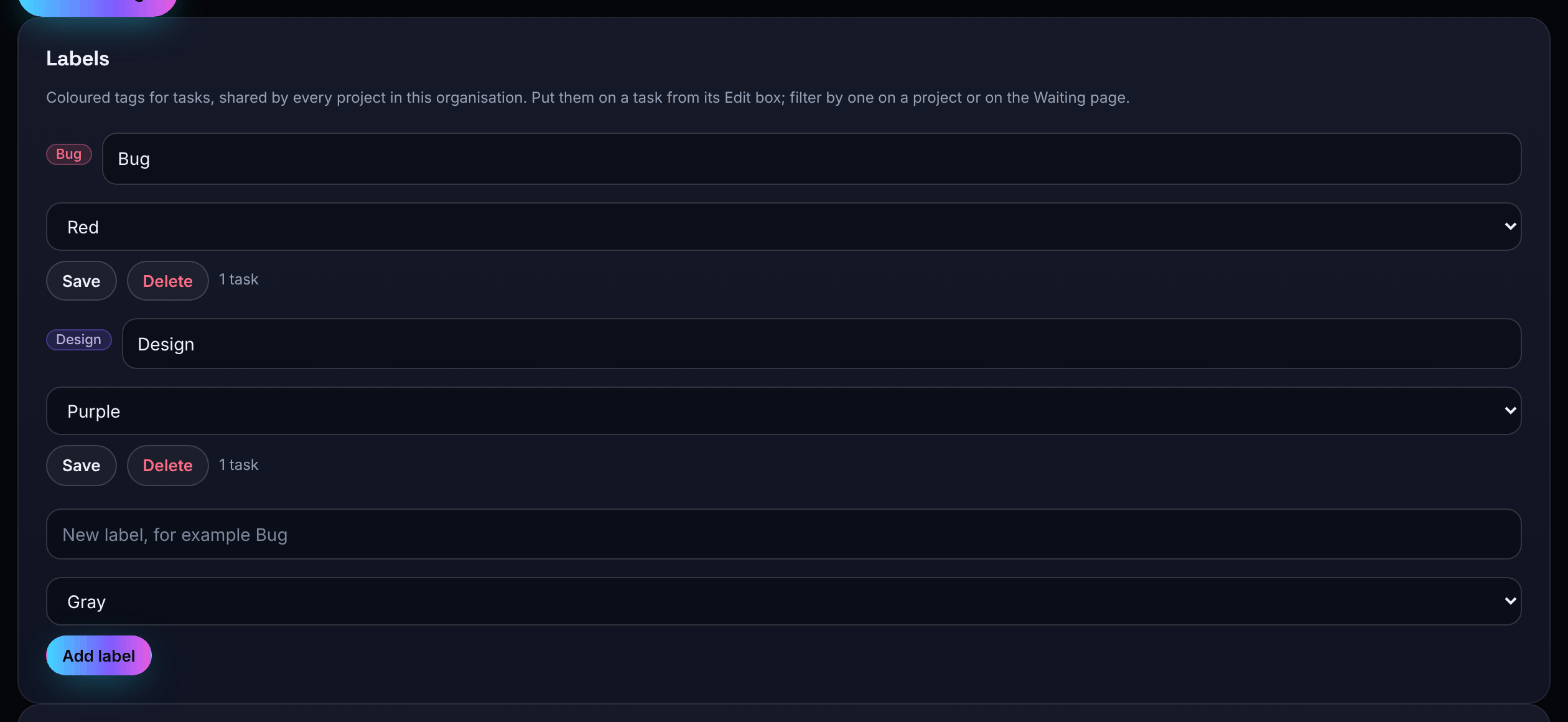
- Open Settings and find Labels.
- Type a name (up to 40 characters, for example Bug), choose a colour and choose Add label.
- To rename or recolour one, change it in the list and choose Save.
The colours are Gray, Red, Orange, Yellow, Green, Teal, Blue, Purple and Pink. Each label shows how many tasks it is on.
Members, admins and owners can add and rename labels. Only admins and owners can delete one; deleting a label takes it off every task. Viewers cannot change labels.
Put labels on tasks
- One task: open an existing task's editor and tick the labels under Labels, then save.
- Many tasks: in the project's table view, tick the tasks and use Label with Add it or Remove it (see Project views).
Labels show as coloured chips on task rows, on My work and on Waiting.
Filter by label
Choose a label in the filter on a project page to show only tasks with it ("Showing only tasks with this label (progress still counts every task)"). The filter applies to the sections and to every view, and is remembered in this browser. My work and Waiting have their own label filters.