When a monitor is confirmed down, AperioFlow opens an incident, tells the people who asked to be told, and closes it again when the monitor is confirmed back.
Watch the video: Incidents, maintenance and alerts
How an incident opens and closes
- With checks from two or more places, at least two places must see the failure, and failures must outnumber passes.
- With one place, the number of failed checks in a row you set on the monitor (2 by default) must fail, about a minute apart.
- A recovery is confirmed the same way.
A confirmed failure opens an incident and, when the monitor has a project, an issue in that project (later outages reopen the same issue). Recovery closes both. A slow response or an ending certificate is shown on the monitor but does not open an incident. Pausing, deleting or switching off a monitor closes its open incident.
A heartbeat's incident opens when no check-in arrives within its period plus the grace period, and closes at the next check-in.
The Incidents tab
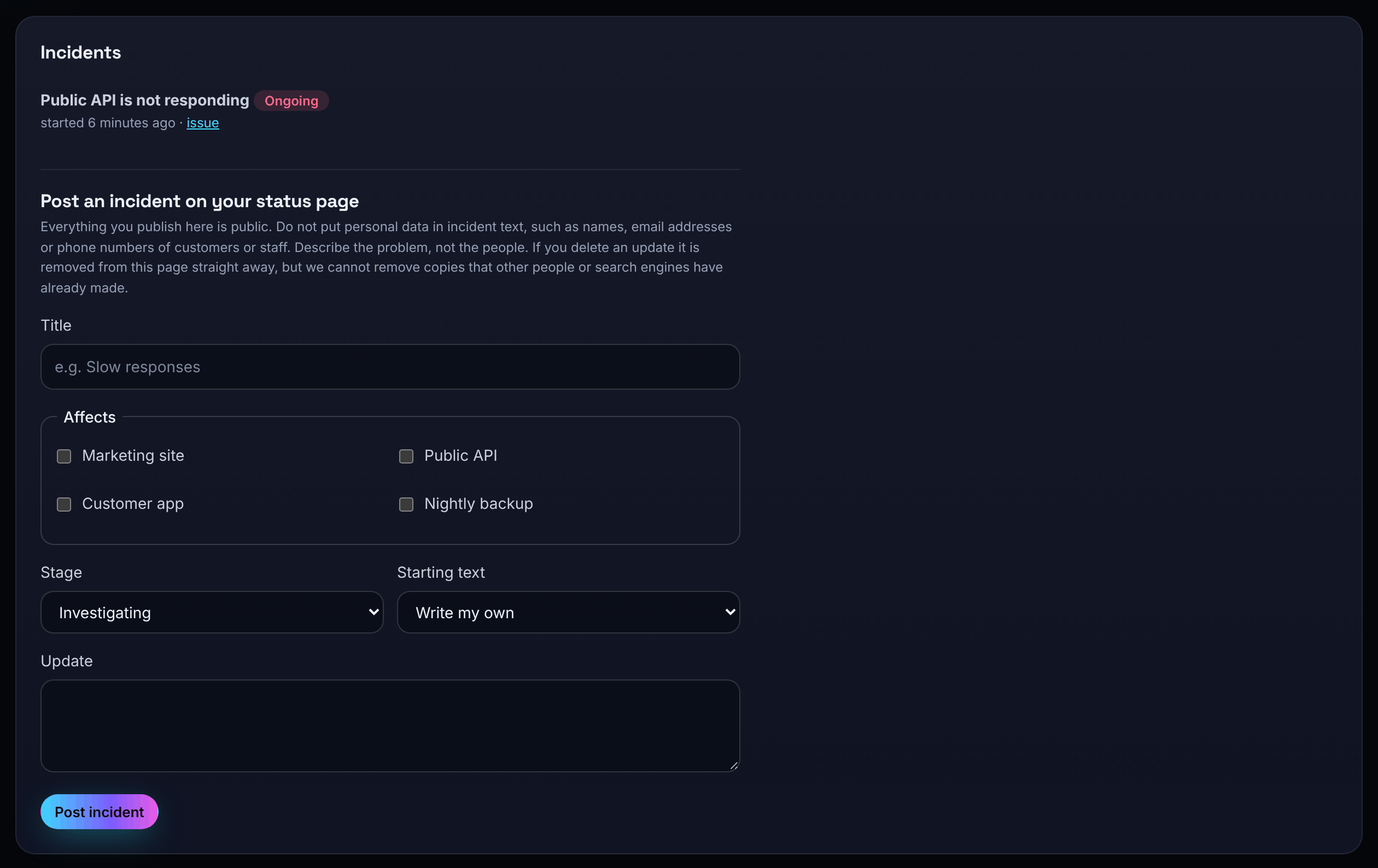
Incidents lists every incident with its title, whether it is Ongoing or Resolved, when it started and ended, and a link to the issue it opened.
Admins and owners can also write an incident for a status page by hand. See Status pages.
Maintenance windows
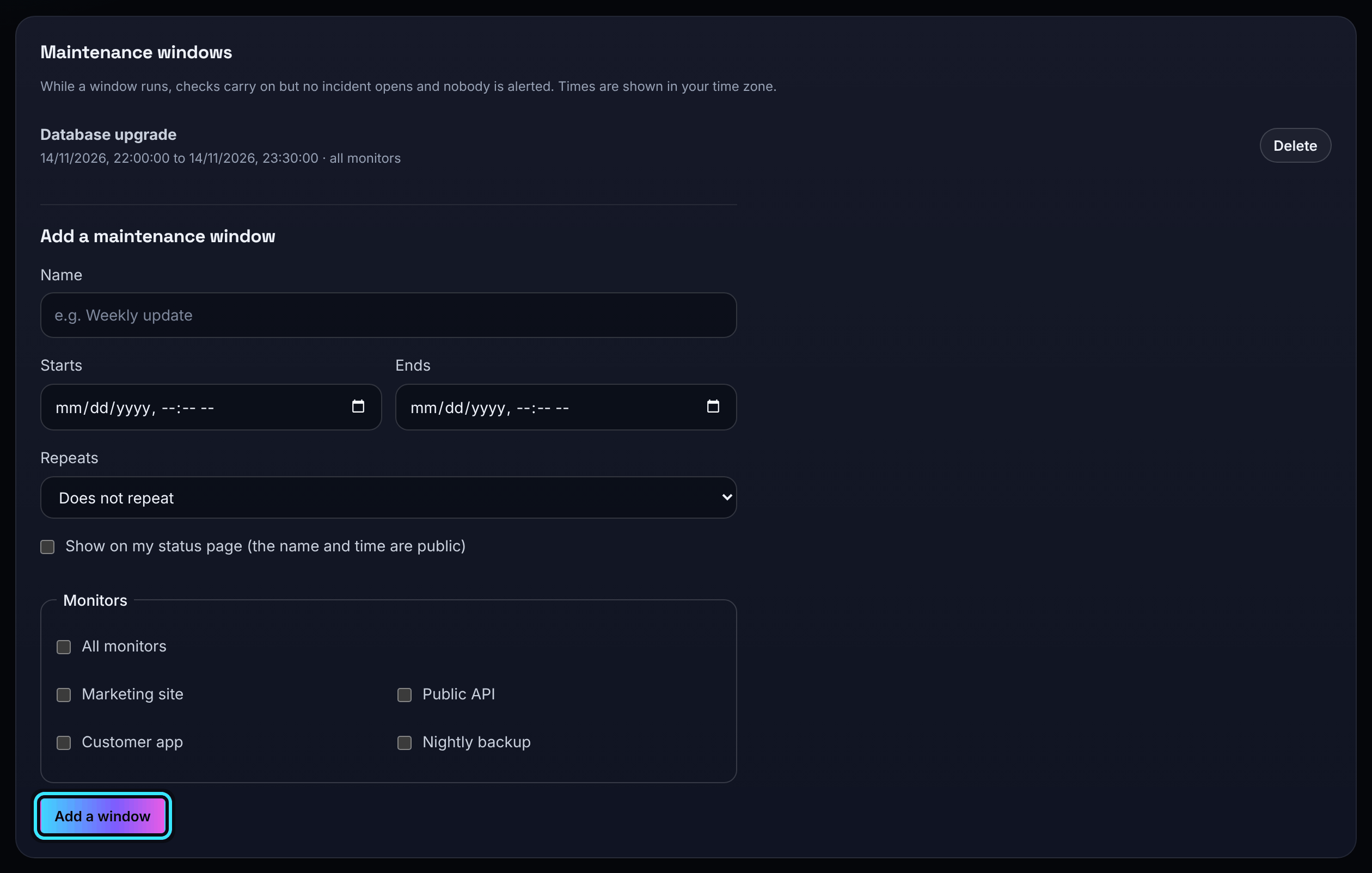
While a window runs, checks carry on but no incident opens and nobody is alerted. A late heartbeat during a window does not count.
- Open Maintenance (you need at least one monitor).
- Give the window a Name, for example "Weekly update".
- Set Starts and Ends in your own time zone.
- Choose Repeats: Does not repeat, Every day or Every week.
- Tick All monitors, or the monitors it covers.
- Optionally tick Show on my status page (the name and time are public).
Then choose Add a window. A window can last up to 7 days; a daily window must be shorter than a day and a weekly one shorter than a week. Times are kept in UTC, so a repeating window does not move when the clocks change. A running window shows Running now.
Members, admins and owners can add and delete windows.
When alerts are sent
An alert is sent:
- once when an incident opens (not during a maintenance window);
- once when it recovers (only if its opening was alerted);
- when a site's certificate reaches the monitor's warning days (30 unless you changed it), and again at 14 and 7 days left when those come after it, once at each step.
Alerts go by email, by web push to devices that turned alerts on, and to your alert webhooks. They name the monitor, never its address.
Who gets alert emails
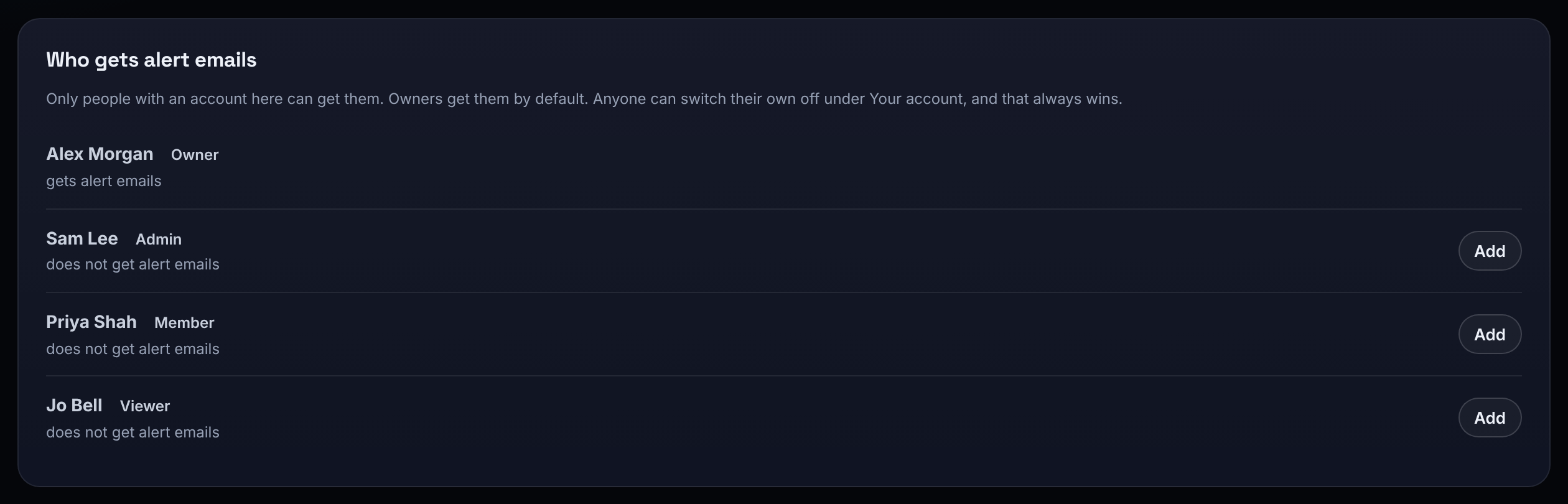
Owners get alert emails by default. An owner can add or remove any member on the Alert emails tab ("Only people with an account here can get them"). Anyone can switch their own alert emails off, or back on, under Your account, Notifications, and their own choice always wins.
The subject names the organisation, the monitor and what happened, for example "Northwind Apps: Public API down". The email gives the monitor's name, its state and the time, and links to the app. Alert emails are service messages, not marketing.
Alert webhooks
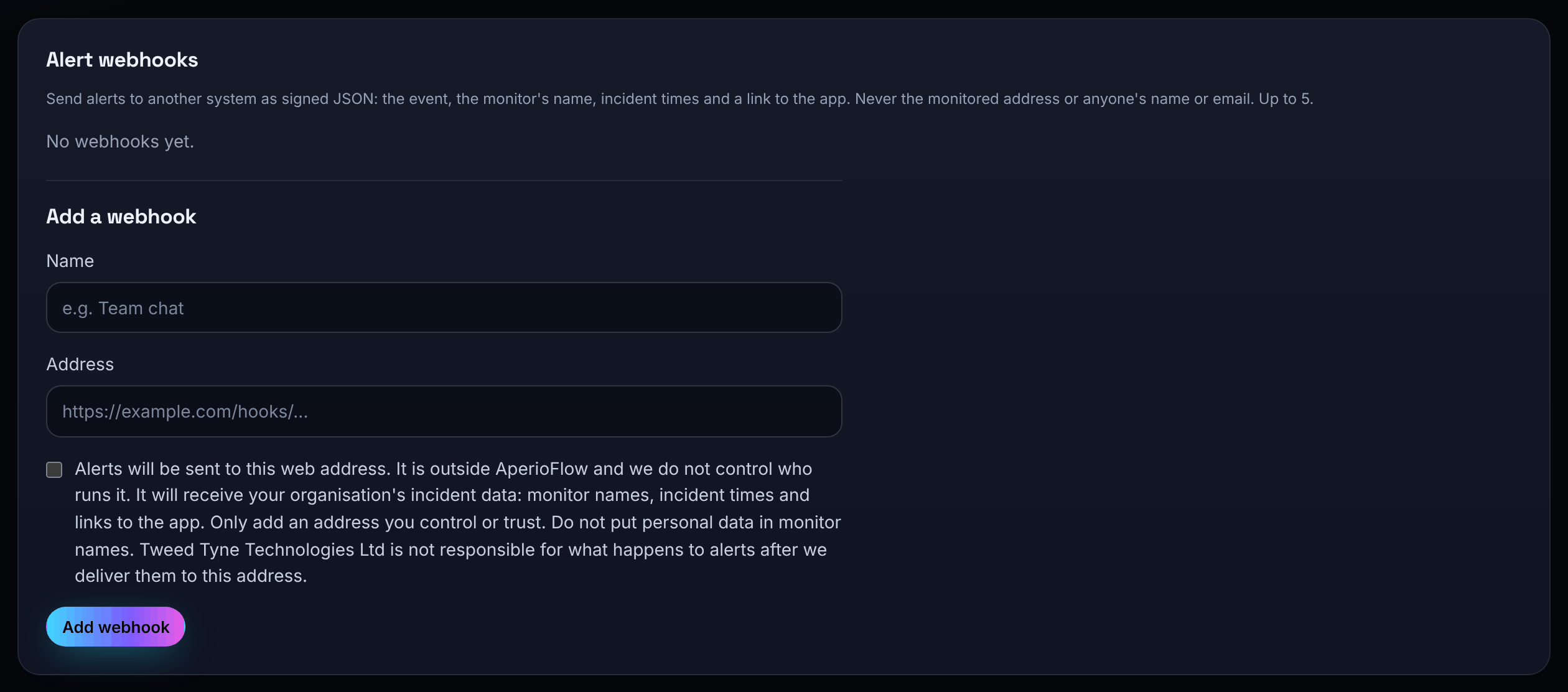
Admins and owners can send alerts to another system, such as a team chat, as signed JSON. An organisation can have up to 5 webhooks.
- Open Webhooks and fill in Add a webhook: a Name and an https Address.
- Tick the box to confirm the address may receive your organisation's incident data. An alert webhook address is outside AperioFlow, so add only one you control or trust.
- Choose Add webhook, then copy the signing secret. It is shown once only.
Send a test sends a test event and shows the answer. A webhook that keeps failing shows Failing until a later delivery works. Delete removes it.
Webhook payload and signature
Each alert is a POST with a JSON body:
{
  "event": "incident.opened",
  "test": false,
  "sent_at": "2026-11-08T10:00:00.000Z",
  "monitor": { "id": 12, "name": "Public API" },
  "incident": { "id": 34, "stage": "investigating", "started_at": "2026-11-08T09:58:00.000Z", "resolved_at": null },
  "certificate_days_at_most": null,
  "link": "https://app.aperioflow.co.uk/#/monitors"
}
event is incident.opened, incident.resolved, certificate.expiring (with certificate_days_at_most: the step that was reached, the monitor's warning days, 14 or 7) or test. The body never holds the monitored address, anyone's name or email address, or anything from the response.
Every request carries these headers:
| Header | Value |
|---|---|
| X-AperioFlow-Event | The event name |
| X-AperioFlow-Timestamp | The time it was sent, in Unix seconds |
| X-AperioFlow-Signature | v1= and the hex HMAC-SHA256 of the timestamp, a full stop and the raw body, keyed with the signing secret |
Check the signature before trusting a request, and reject old timestamps. In Node:
import crypto from 'node:crypto';

function verify(rawBody, headers, secret) {
  const timestamp = headers['x-aperioflow-timestamp'];
  const expected = 'v1=' + crypto.createHmac('sha256', secret).update(`${timestamp}.${rawBody}`).digest('hex');
  const given = headers['x-aperioflow-signature'] ?? '';
  const fresh = Math.abs(Date.now() / 1000 - Number(timestamp)) < 300;
  return fresh && given.length === expected.length && crypto.timingSafeEqual(Buffer.from(given), Buffer.from(expected));
}
Answer with any 2xx status within 10 seconds. A delivery that fails is tried again after 1, 5 and 30 minutes, then dropped. Redirects are not followed.