A project is one piece of work with a plan: a website relaunch, a new app version, a client job. Projects in the main menu lists every project in your organisation.
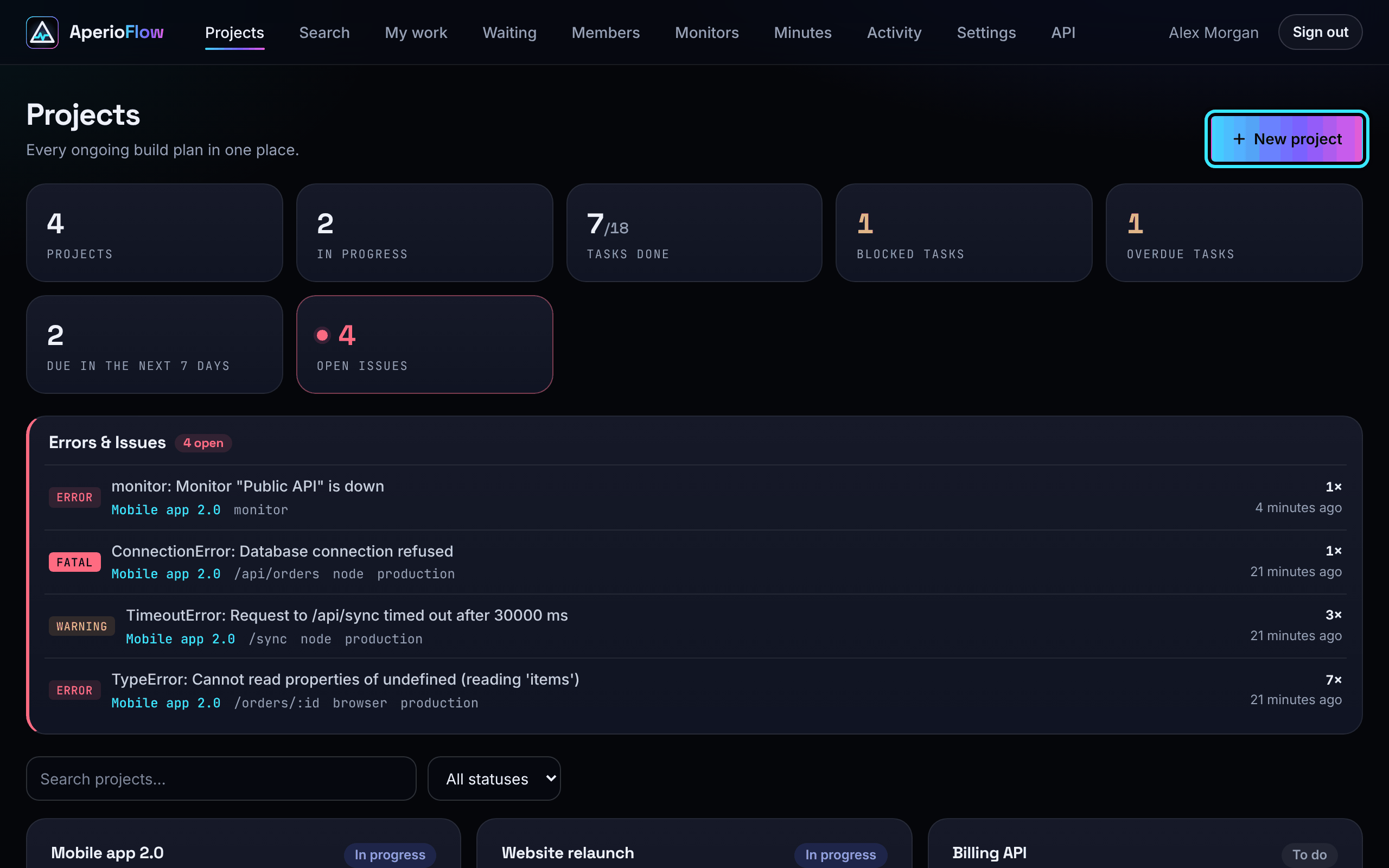
The Projects page
At the top, seven figures summarise the organisation:
| Figure | What it counts |
|---|---|
| Projects | Every project |
| In progress | Projects whose status is In progress |
| Tasks done | Done tasks out of all tasks, across every project |
| Blocked tasks | Tasks marked Blocked (highlighted when above zero) |
| Overdue tasks | Open tasks past their due date (highlighted when above zero) |
| Due in the next 7 days | Open tasks due within a week |
| Open issues | Open errors and issues across every project; choose it to jump to the list below |
The Open issues figure turns green when there are none and red when there are some, and pulses when the number has changed since your last visit.
Below the figures, Errors & Issues lists up to 200 of the most recent open issues across all projects. Choose one to open its issue card (see Working with issues).
Find a project
Type in Search projects... to filter the cards by name, description or owner, and use the status menu (All statuses, To do, In progress, Blocked, Done, Cancelled) to narrow them further. The filters are not kept when you reload the page.
Each card shows the project's name, status, description and progress, then counts: phases, tasks done, blocked, overdue, due in the next 7 days, tasks awaiting the owner or a response, and open issues. The footer shows the priority (when not Medium), owner, due date and when it was last updated.
Create a project
- Choose New project.
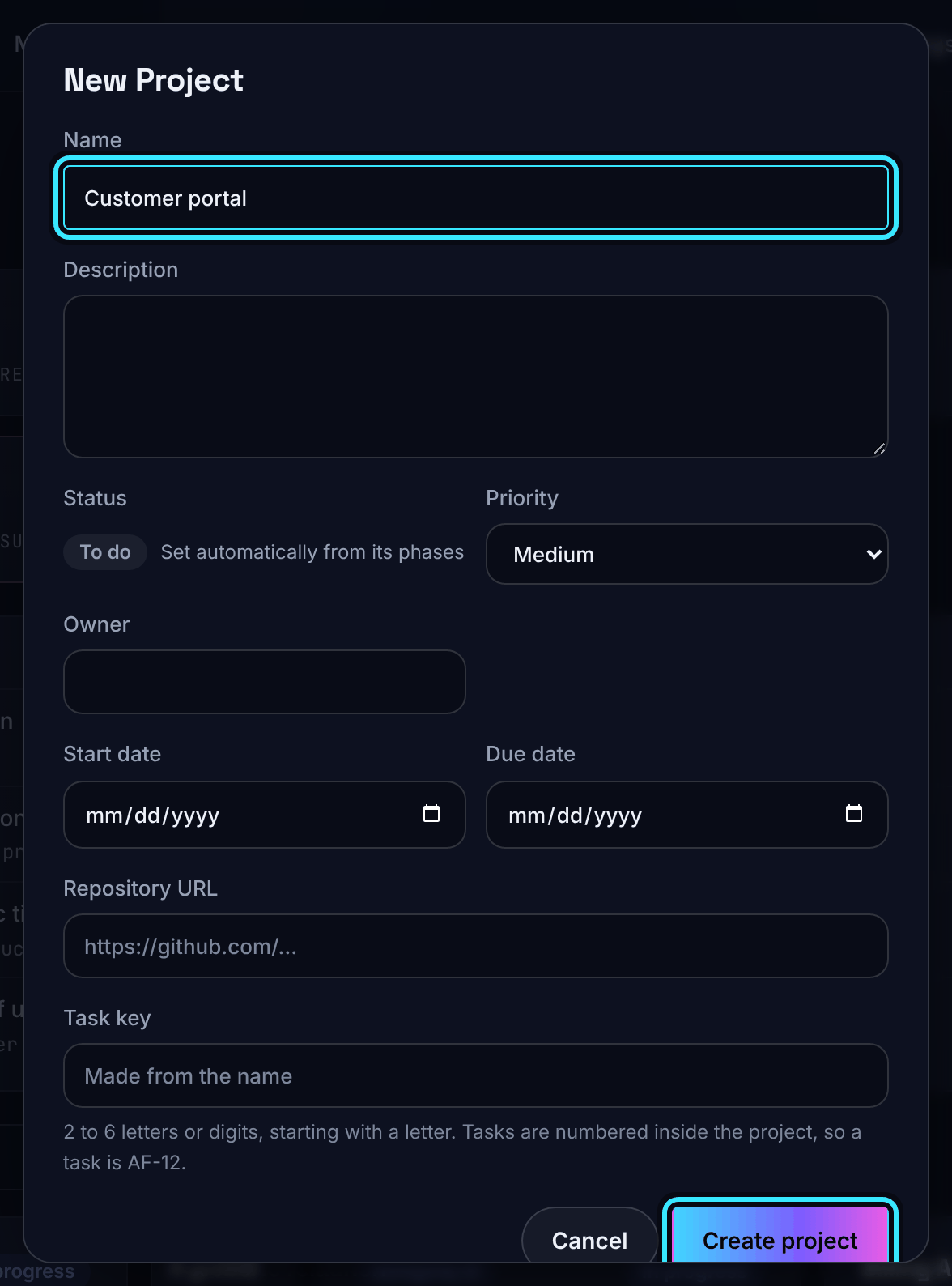
- Fill in the project editor. Only Name is required.
- Choose Create project. The new project opens.
| Field | What it is for |
|---|---|
| Name | Up to 300 characters |
| Description | Up to 20,000 characters, shown as plain text |
| Priority | Low, Medium (the default), High or Critical |
| Owner | A member's name (choose from the suggestions to link them) or any text |
| Start date, Due date | Shown on the card and used for "overdue" |
| Repository URL | A link to the code, for example on GitHub. Used for GitHub Actions minutes and GitGuardian |
| Task key | 2 to 6 letters or digits, starting with a letter. Tasks are numbered inside the project, so a task is AF-12. Left empty, it is made from the project's name |
The Free plan includes 3 active projects; Solo and Team have no limit on projects. Creating one more than the plan allows is refused with a message pointing to Settings, Billing.
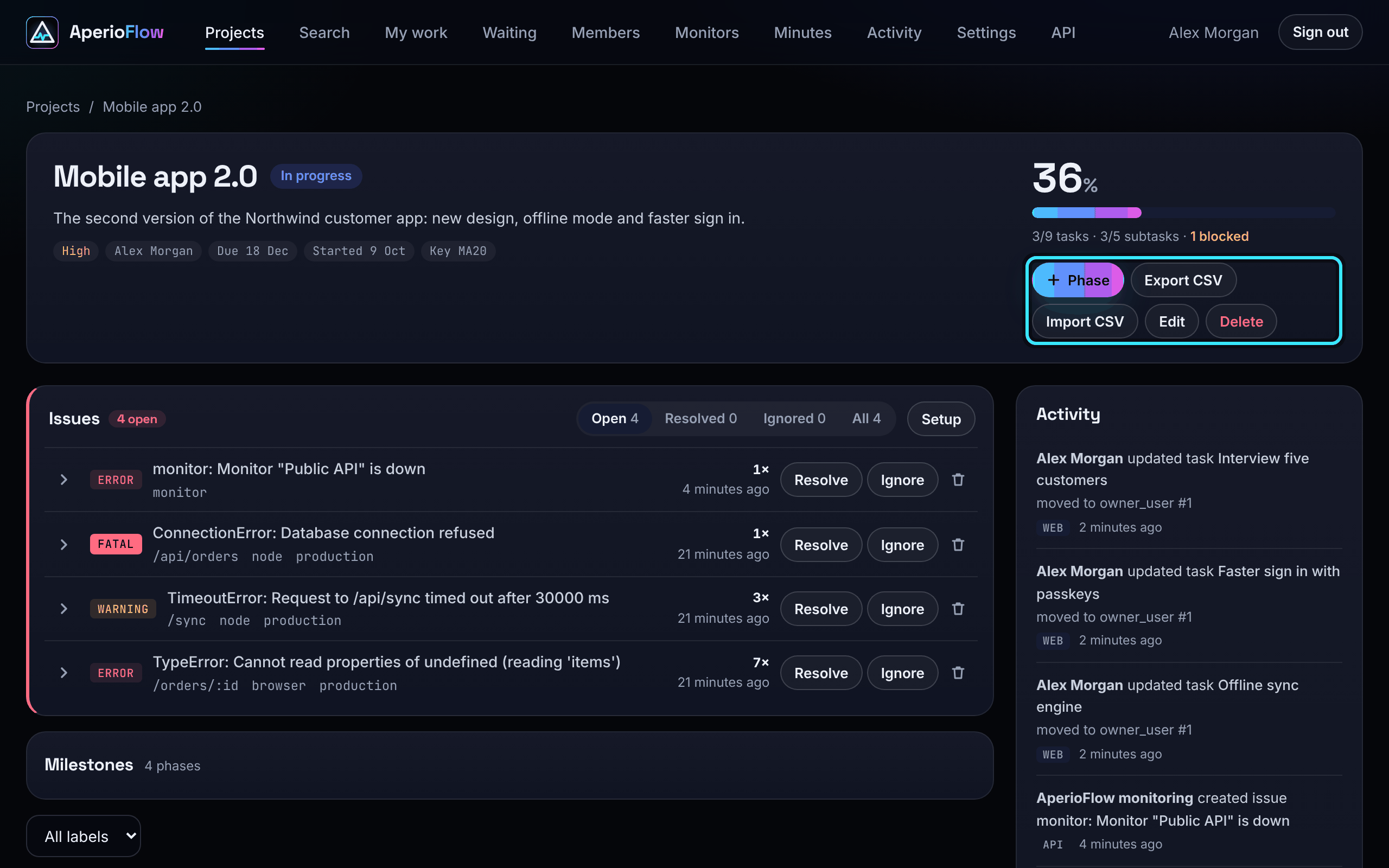
The project page
Opening a project shows, from the top:
- The name and status. The status is worked out from the phases (see Phases, tasks and subtasks); you cannot set it by hand.
- The description (a long one shows its first sentence with Read more), and tags for priority, owner, due date, start date, task key and a Repository link.
- The progress percentage and bar, with counts of tasks, subtasks and blocked tasks.
- Buttons: Phase (add a phase), Export CSV, Import CSV (admins and owners), Edit and Delete.
- The project's issues, then milestones, the label filter, the waiting and regular sections, the view switcher and the plan itself.
- On the right, Activity: the latest 40 changes to this project, each with who made it and whether it came from the web or the API.
Task keys
A task key gives every task a short, stable name such as AF-12, shown on its row. Use it in branch names and commit messages; with the GitHub connection it links pull requests to tasks (see GitHub and Actions minutes). Through the API, GET /api/tasks/by-key/AF-12 finds a task by its key.
Set or change the key in the project's Edit box. It must be unique in your organisation.
Edit or delete a project
Choose Edit (or click the project's name) to change any field, then Save changes.
Delete removes the project with all of its phases, tasks, subtasks and issues, after you confirm. Only admins and owners can delete a project, and it cannot be undone. To keep a copy first, use Export CSV or the organisation export in Settings.
Projects switched off by your plan
If your organisation moves to a plan with fewer projects, nothing is deleted: the newest projects are switched off. A switched-off project can still be read and deleted, but cannot be changed and records no new errors. An admin chooses which projects stay on under Settings, Billing (switch one off, then another on). Upgrading switches them back on. See Plans and billing.