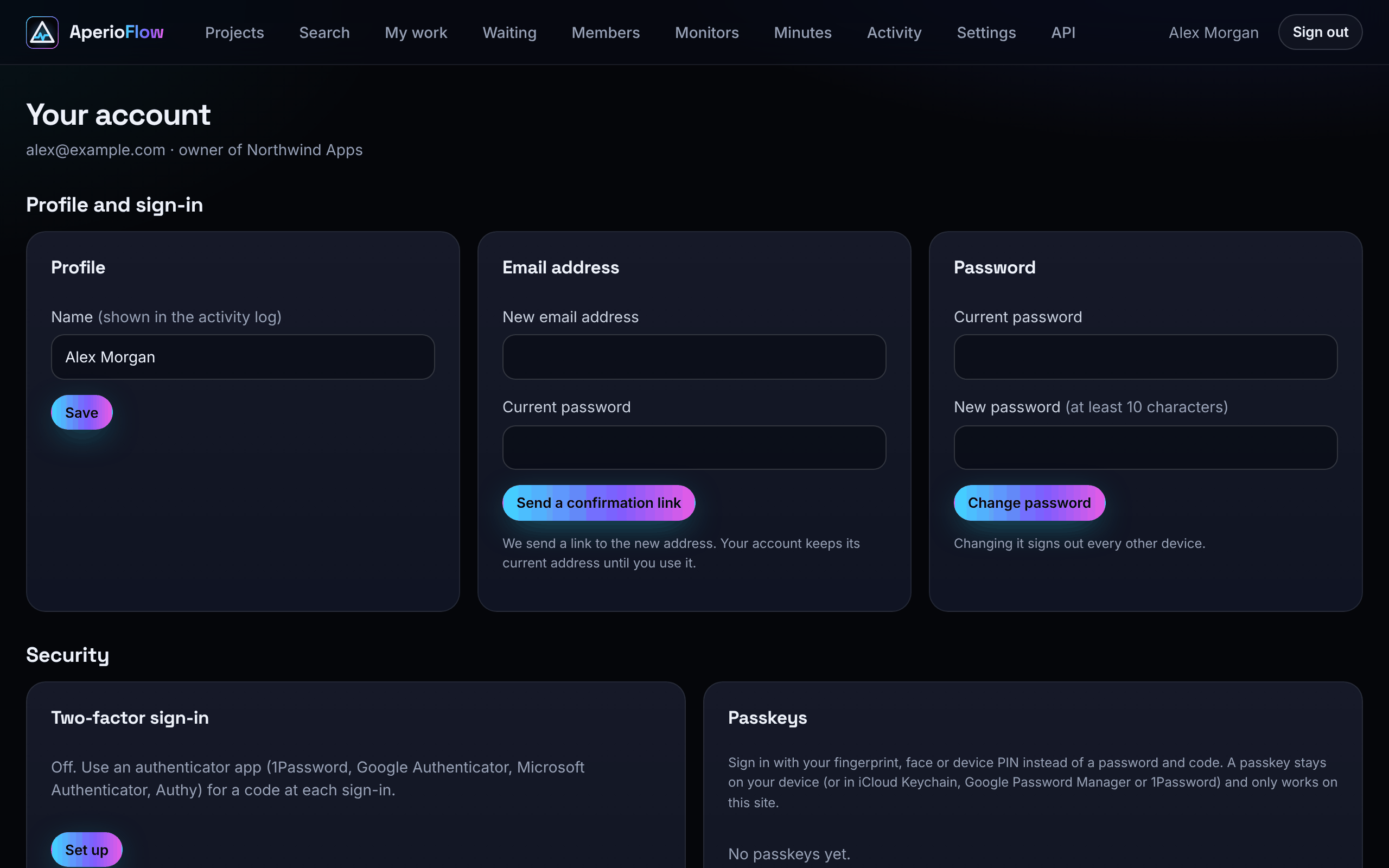
Choose your name in the top bar to open Your account. Everything here is about you, not your organisation.
Profile
Change your Name (shown in the activity log) and choose Save.
Change your email address
Type the New email address and your Current password, then choose Send a confirmation link. We send a link to the new address; your account keeps its current address until you use it. Your old address is told that it was changed.
Change your password
Type your Current password and a New password of at least 10 characters, then choose Change password. Changing it signs out every other device.
Two-factor sign in
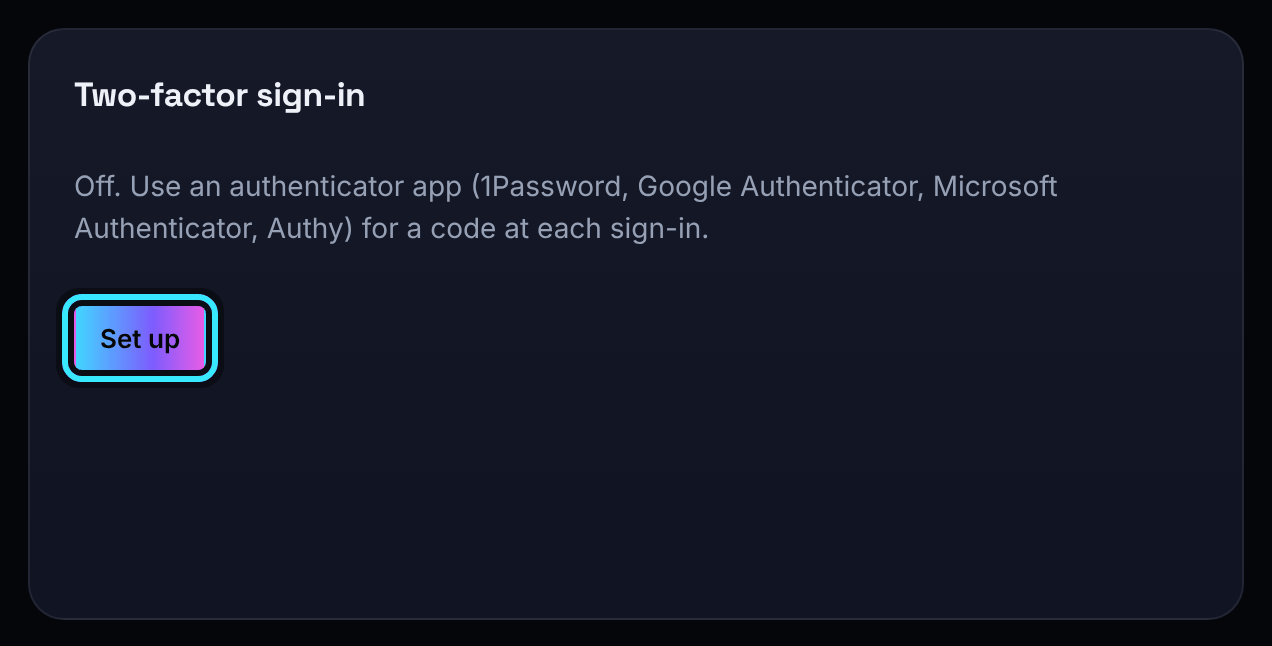
Two-factor sign in asks for a six-digit code from an authenticator app (such as 1Password, Google Authenticator, Microsoft Authenticator or Authy) each time you sign in with your password.
- Under Two-factor sign-in choose Set up.
- Scan the QR code with your authenticator app, or type the key shown (or open the link on your phone).
- Type the 6-digit code it shows and your password, and choose Turn on. The password makes sure it is you, not someone using a computer you left signed in.
- Copy the recovery codes somewhere safe, such as your password manager. Each works once if you lose your phone. They are not shown again.
To turn it off, type your password and choose Turn off. To get new recovery codes, turn two-factor off and on again.
The members list shows who has two-factor sign in on.
Passkeys
A passkey lets you sign in with your fingerprint, face or device PIN instead of a password and code. It stays on your device (or in iCloud Keychain, Google Password Manager or 1Password) and only works on this site.
- Under Passkeys, type a Name for it, for example "MacBook" or "iPhone".
- Type your Password and choose Add a passkey, then confirm on your device.
Each passkey shows when it was added and last used. Remove stops it working at once; also delete it from the device or password manager that holds it.
Linked sign-ins
Link a Google, Microsoft, Apple, GitHub or Slack account to sign in with it (only the ones that are switched on are shown). Type your Password, then choose the provider's button below it (each shows the provider's logo; its name appears when you point at it) and approve on the provider's page. Nothing is ever linked by email address alone. Remove unlinks one (your password is needed first).
Where you're signed in
Each place you are signed in is listed with its browser and system, organisation, when you signed in and when it was last active. Sign out ends one other session; Sign out everywhere else ends all but this one. A session lasts 30 days from when you signed in.
The AperioFlow app
AperioFlow has an app for iPhone and Android. Download it from the App Store or Google Play, or use the buttons under The AperioFlow app on this page, and sign in with the same email address and password.
API keys
Under API keys you make keys for scripts, CI, the VS Code extension and AI assistants. See The API and AI assistants.
Download your data
Under Your data, type your Current password and choose Download JSON. The file holds your account details, memberships, sign-in methods, sessions and what you have done in the app. Passwords, keys and codes are never included.
Delete your account
You delete your AperioFlow account in the Tweed Tyne Technologies Privacy Centre, our one place to see, download and delete what each of our platforms holds about you. Choose Delete your account in the Tweed Tyne Technologies Privacy Centre on Your account; you prove you control your email address with a one-time emailed link, and you can download your data there first.
Deleting is permanent. Work you made in an organisation stays with that organisation and shows as "Deleted user".
If you are the only owner of an organisation, your account cannot be deleted yet: first make another member an owner, or delete the organisation.
If we cannot email you
If an email to your address bounced for good or was reported as unwanted, Your account shows "We cannot email you at this address" and we stop sending mail to it, including sign in and password reset emails. Change your address to one that works; the block does not follow you to the new address.