Everything in the signed-in app is reached from the bar at the top of the page.

The main menu
| Menu item | What it opens | Who sees it |
|---|---|---|
| Projects | Every project, with errors and issues at a glance | Everyone |
| Search | Search projects, phases, tasks and subtasks | Everyone |
| My work | Tasks assigned to you in every project | Everyone |
| Waiting | Tasks in every project's waiting and regular sections | Everyone |
| Members | The people in your organisation and their roles | Everyone |
| Monitors | Monitors, heartbeats, incidents, maintenance and alerts | Everyone, when monitors are switched on |
| Minutes | GitHub Actions minutes | Everyone |
| Activity | The organisation's change history | Admins and owners |
| Settings | Organisation settings, labels and billing | Everyone (only admins and owners can change them) |
| API | The API reference and the OpenAPI download | Everyone |
On the right are the alerts button (when push notifications are available), the organisation switcher (when you belong to more than one organisation), your name, which opens Your account, and Sign out.
On a phone the menu scrolls sideways; a fade at the edge shows there are more items.
Search
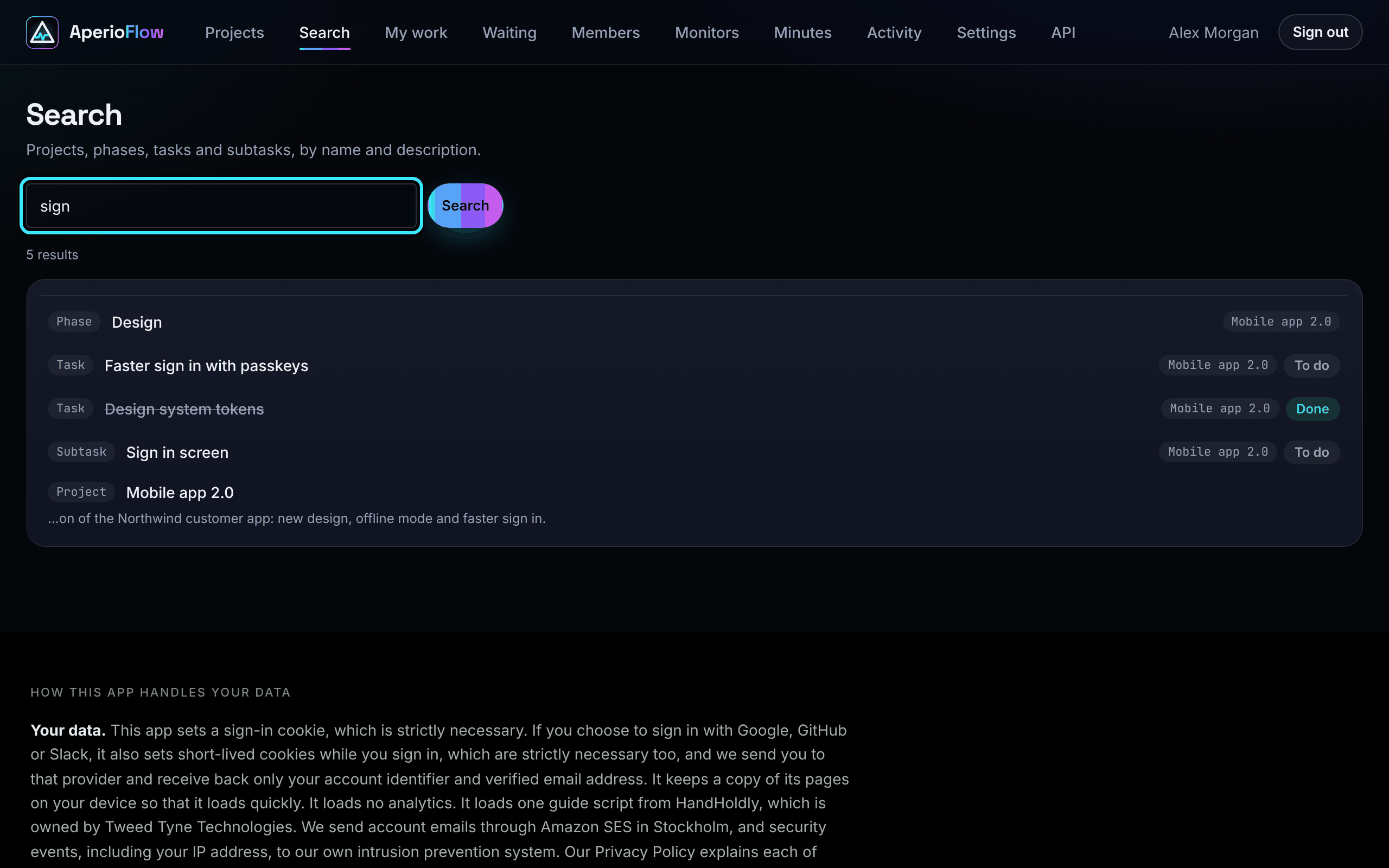
Choose Search (or press /) and type at least two characters. AperioFlow looks through the names and descriptions of projects, phases, tasks and subtasks.
- Up to 50 results are shown, each with its type, its ID, project, status and a snippet of the matching text. If there are more, narrow the search.
- Projects and phases open the project; tasks and subtasks open the project at that task's row.
- The search is part of the page address, so you can bookmark or share it.
Searching by ID
Every item has an ID, shown in a small badge: #26 for a project (on its page), P12 for a phase, T345 for a task and S678 for a subtask. These are the same IDs the API and the MCP connector use, so an ID from an AI assistant or an integration can be found here.
| Type this | To find |
|---|---|
id:345 or #345 | Anything with ID 345: a project, phase, task or subtask |
project:26, phase:12, task:345, subtask:678 | That kind only |
T345, S678, P12 | The task, subtask or phase on that badge, then anything whose text mentions it |
AF-12 | The task with that task key, then anything whose text mentions it |
id: and the searches that name a kind show only the exact match. Case does not matter, and a space after the colon is fine.
Keyboard shortcuts
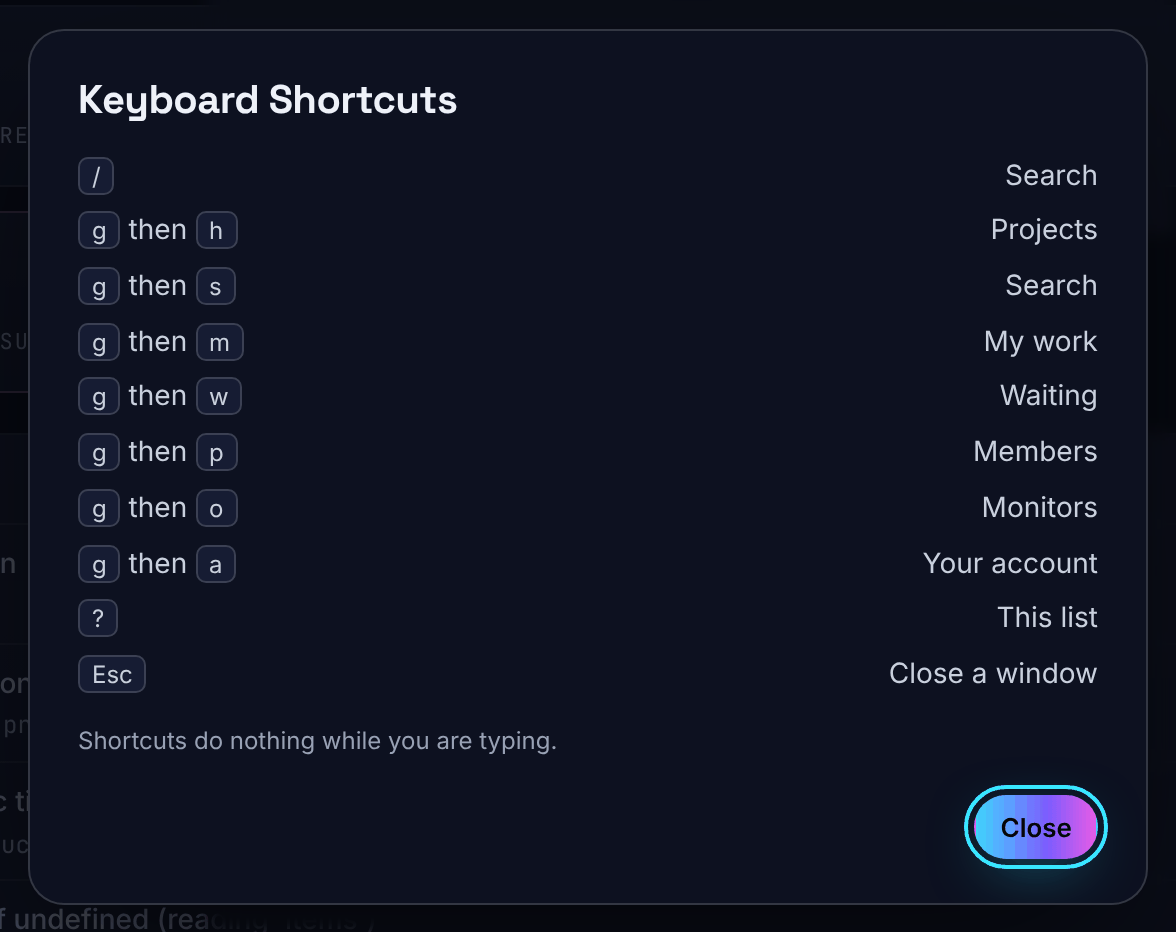
Press ? to see the list at any time.
| Keys | Does |
|---|---|
/ | Search |
g then h | Projects |
g then s | Search |
g then m | My work |
g then w | Waiting |
g then p | Members |
g then o | Monitors |
g then a | Your account |
? | The list of shortcuts |
Esc | Close a window |
Press the second key within a second and a half of g. Shortcuts do nothing while you are typing in a box, while a window is open, or while Ctrl, Alt or Cmd is held.
Switching organisations
You can belong to several organisations, each with its own projects, members, plan, monitors and API keys. When you do, a menu appears in the top bar. Choose another organisation and AperioFlow switches to it, shows "Now in" with its name and opens its Projects page. Your role can differ in each one.
The page keeps itself up to date
Every page refreshes quietly every 15 seconds, and when you come back to the tab, so changes made by other people, the API or an AI assistant appear without reloading. The refresh waits while a window is open, while you are typing, while the tab is hidden and on the API page. Open folds and the box you were in are kept.
If part of a page cannot load you see "Could not load ..." with Try again. A change is never sent twice if you double-click.
Settings that belong to this browser
Some choices are remembered by the browser you use rather than your account: the project view (list, board, table, calendar or timeline), whether done phases are hidden, the label filter, the table's filters and sorting, which phases and tasks are folded, the issue filter and the Waiting and My work filters. On another computer they start from the defaults. Saved table views belong to your account and follow you.
Installing AperioFlow as an app
AperioFlow can be installed from the browser: choose Install app in the browser's menu, or on iPhone and iPad tap Share, then Add to Home Screen. It opens in its own window. With no connection the app's frame opens but your data does not load until you are back online: nothing is stored for offline use and changes cannot be made offline.